Enquiry Forms
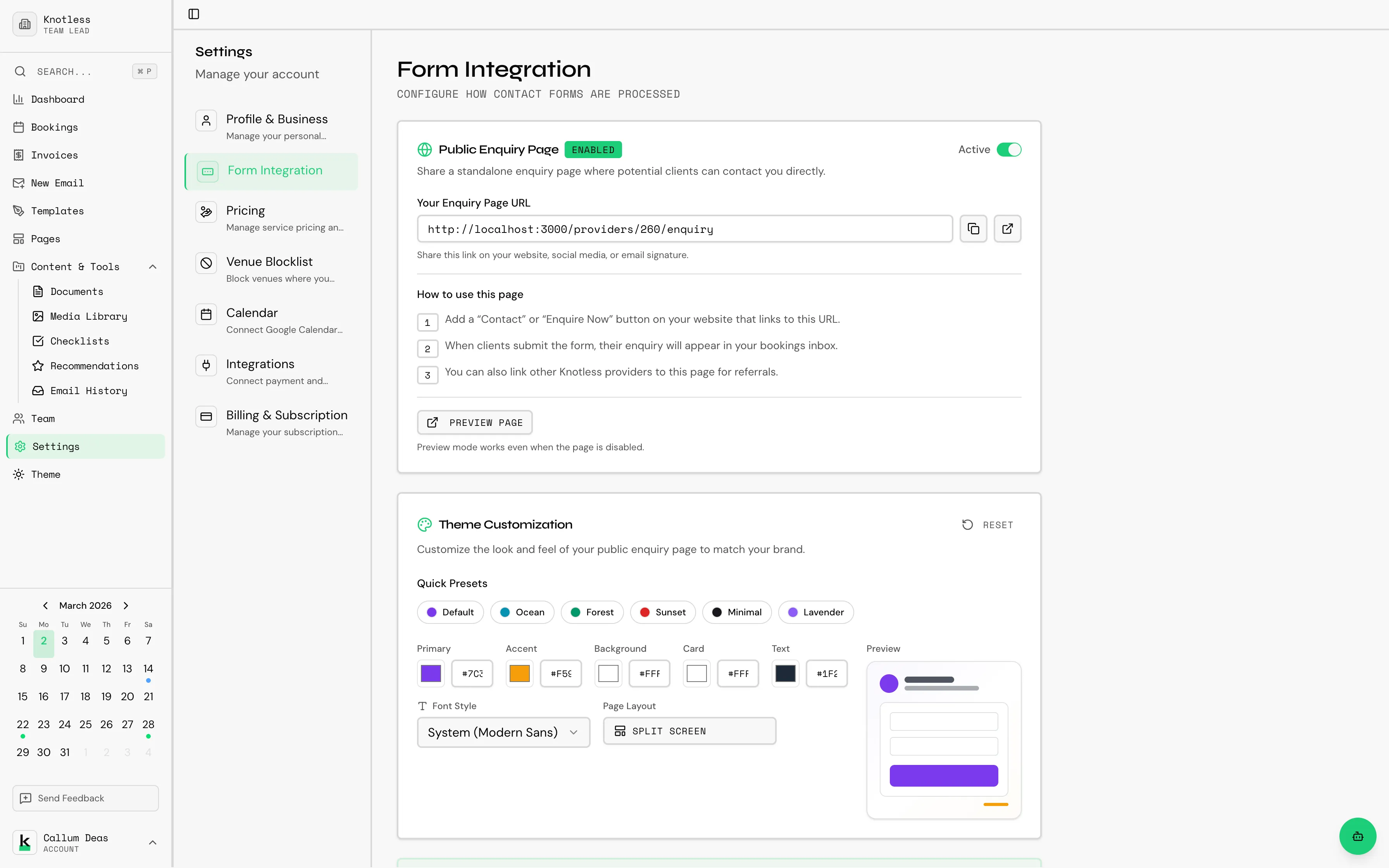
Knotless provides a customisable contact form that potential clients can use to enquire about your services. The form can be embedded on your own website or shared as a standalone hosted page.
Accessing Form Settings
Section titled “Accessing Form Settings”Go to Settings → Forms to configure your enquiry form.
Customisation Options
Section titled “Customisation Options”Layout
Section titled “Layout”Choose from several layout options for how the form is displayed:
- Centred - Form in the middle of the page
- Split - Form alongside an image or content panel
- Full-width - Form spanning the full width
Customise the form’s visual appearance:
- Colours - Match your brand colours
- Style - Choose a theme that fits your brand
Fields
Section titled “Fields”Configure which fields appear on the form and which are required:
- Client name
- Phone number
- Event date
- Venue (with Google Places autocomplete)
- Event type
- Message/notes
- Party size
Hosted Page
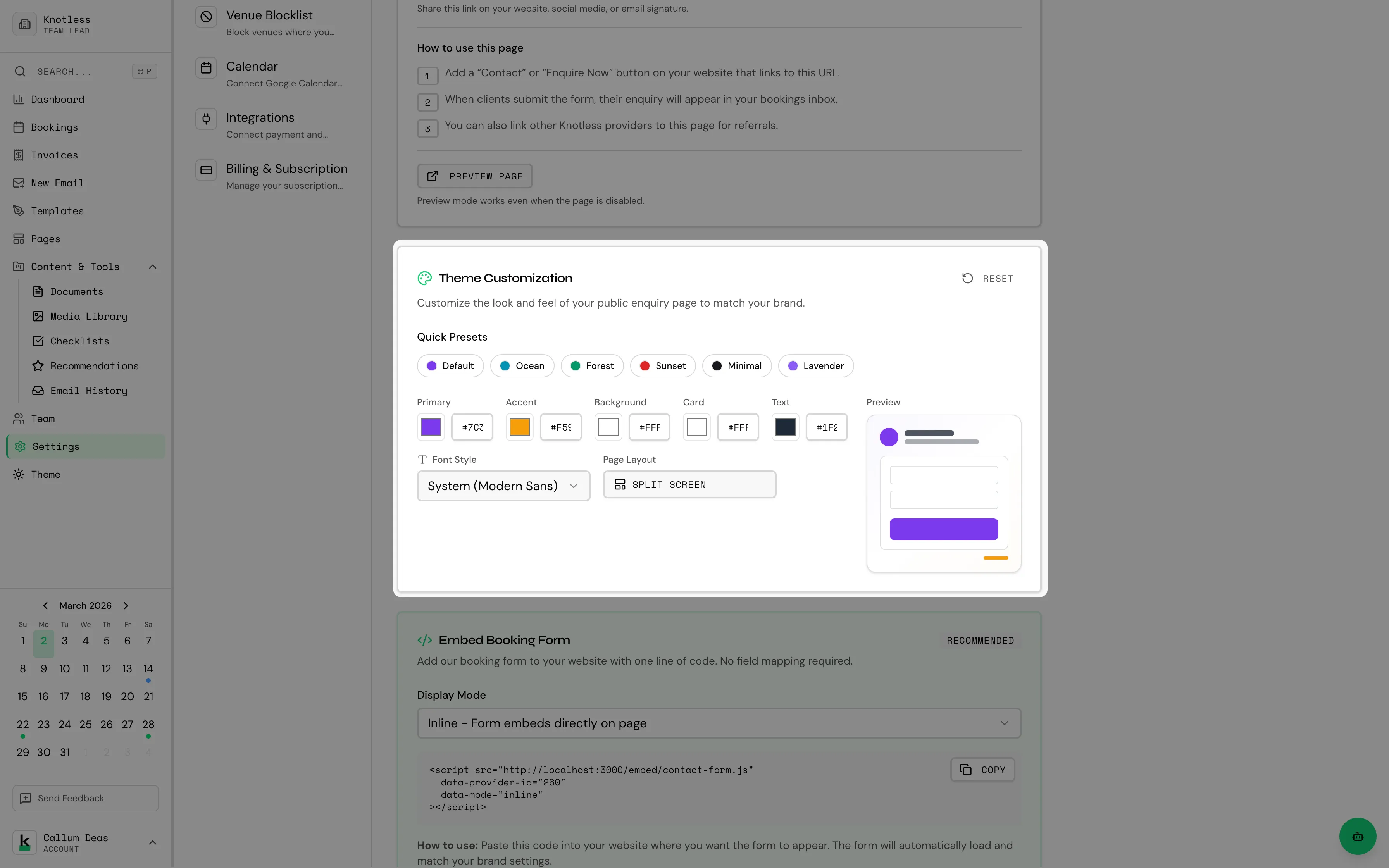
Section titled “Hosted Page”Enable the hosted page option to get a shareable link for your form:
- Toggle Hosted Page to on in form settings
- A unique URL is generated for your provider account
- Share this link on social media, in your email signature, or anywhere you want
The hosted page URL follows the pattern: knotless.co.uk/providers/[your-id]/enquiry
{/_ TODO: Screenshot of the hosted enquiry form page as seen by a potential client /} {/ Preferred filename: enquiry-form-hosted.png _/}
Embedding on Your Website
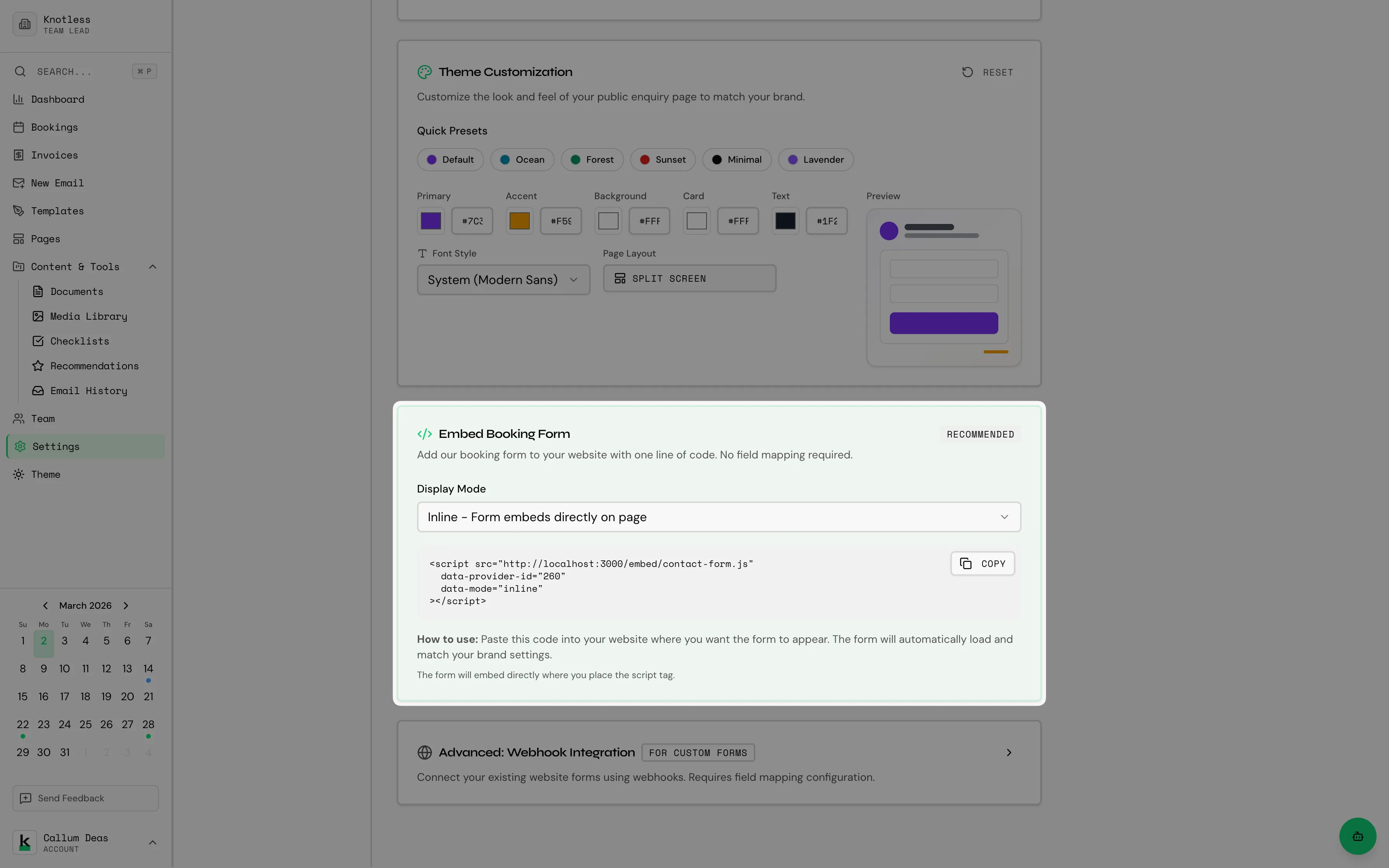
Section titled “Embedding on Your Website”You can also embed the form on your own website using an iframe:
- Go to Settings → Forms
- Copy the embed code provided
- Paste the code into your website’s HTML
The embedded form URL follows the pattern: knotless.co.uk/providers/[your-id]/enquiry/embed
Preview Mode
Section titled “Preview Mode”Use the preview button to see exactly how your form will look to potential clients before publishing.
What Happens When a Client Submits
Section titled “What Happens When a Client Submits”When a client fills in and submits the enquiry form:
- A new booking is automatically created in your Knotless dashboard with status Inquiry
- The client’s details are saved
- If you have workflows set up with a Booking Created trigger, they will fire automatically
- You’ll see the new enquiry in your bookings list
Next: Learn about Shared Pages & Proposals and how clients interact with your content.