Enquiry Forms
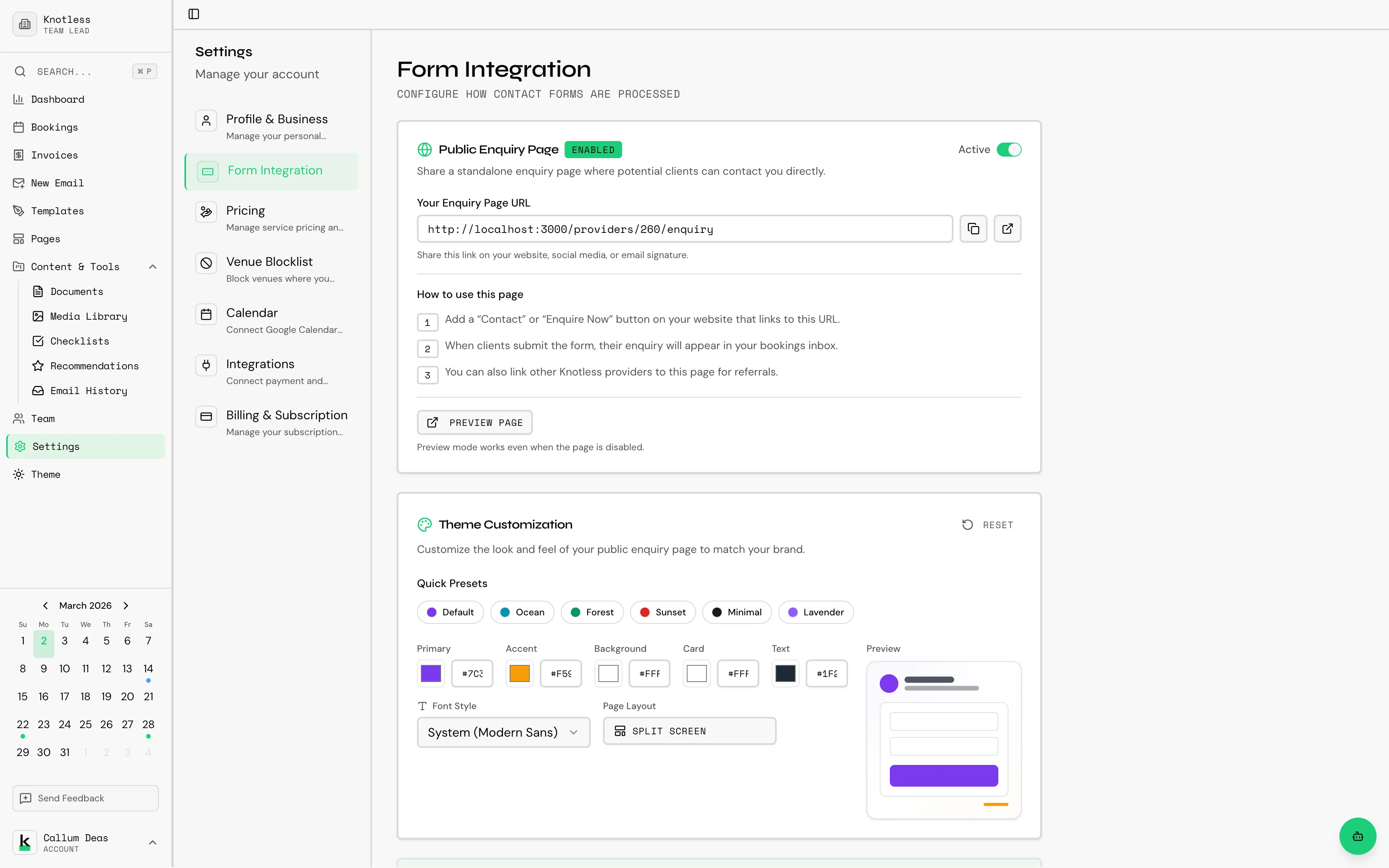
Knotless provides a customisable contact form that potential clients can use to enquire about your services. The form can be embedded on your own website or shared as a standalone hosted page.
Accessing Form Settings
Section titled “Accessing Form Settings”Go to Settings → Forms to configure your enquiry form.
Customisation Options
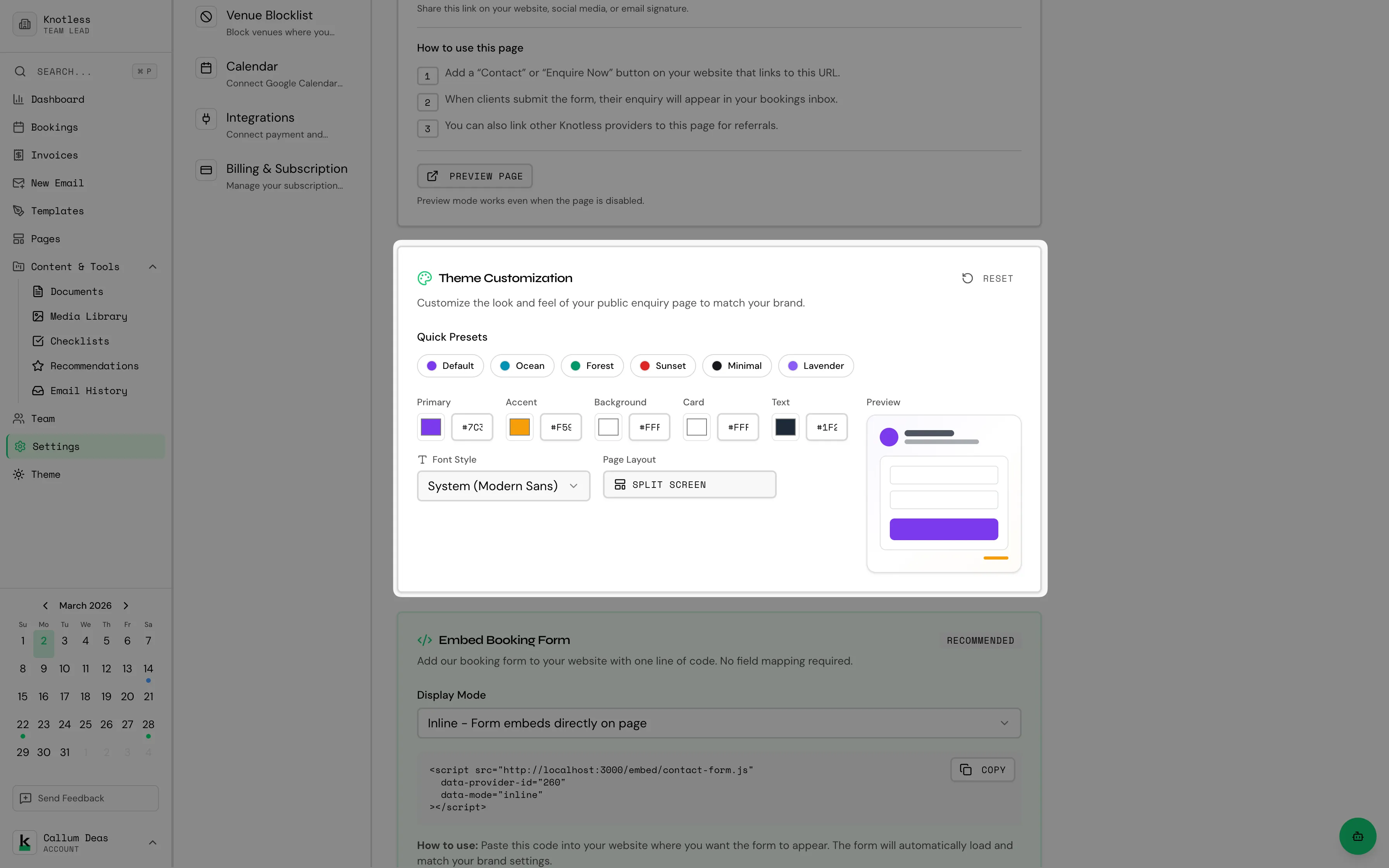
Section titled “Customisation Options”Layout
Section titled “Layout”Choose from several layout options for how the form is displayed:
- Centred - Form in the middle of the page
- Split - Form alongside an image or content panel
- Full-width - Form spanning the full width
Customise the form’s visual appearance:
- Colours - Match your brand colours
- Style - Choose a theme that fits your brand
Fields
Section titled “Fields”Configure which fields appear on the form and which are required:
- Client name
- Phone number
- Event date
- Venue (with Google Places autocomplete)
- Event type
- Message/notes
- Party size
Hosted Page
Section titled “Hosted Page”Enable the hosted page option to get a shareable link for your form:
- Toggle Hosted Page to on in form settings
- A unique URL is generated for your provider account
- Share this link on social media, in your email signature, or anywhere you want
The hosted page URL follows the pattern: knotless.co.uk/providers/[your-id]/enquiry
{/_ TODO: Screenshot of the hosted enquiry form page as seen by a potential client /} {/ Preferred filename: enquiry-form-hosted.png _/}
Embedding on Your Website
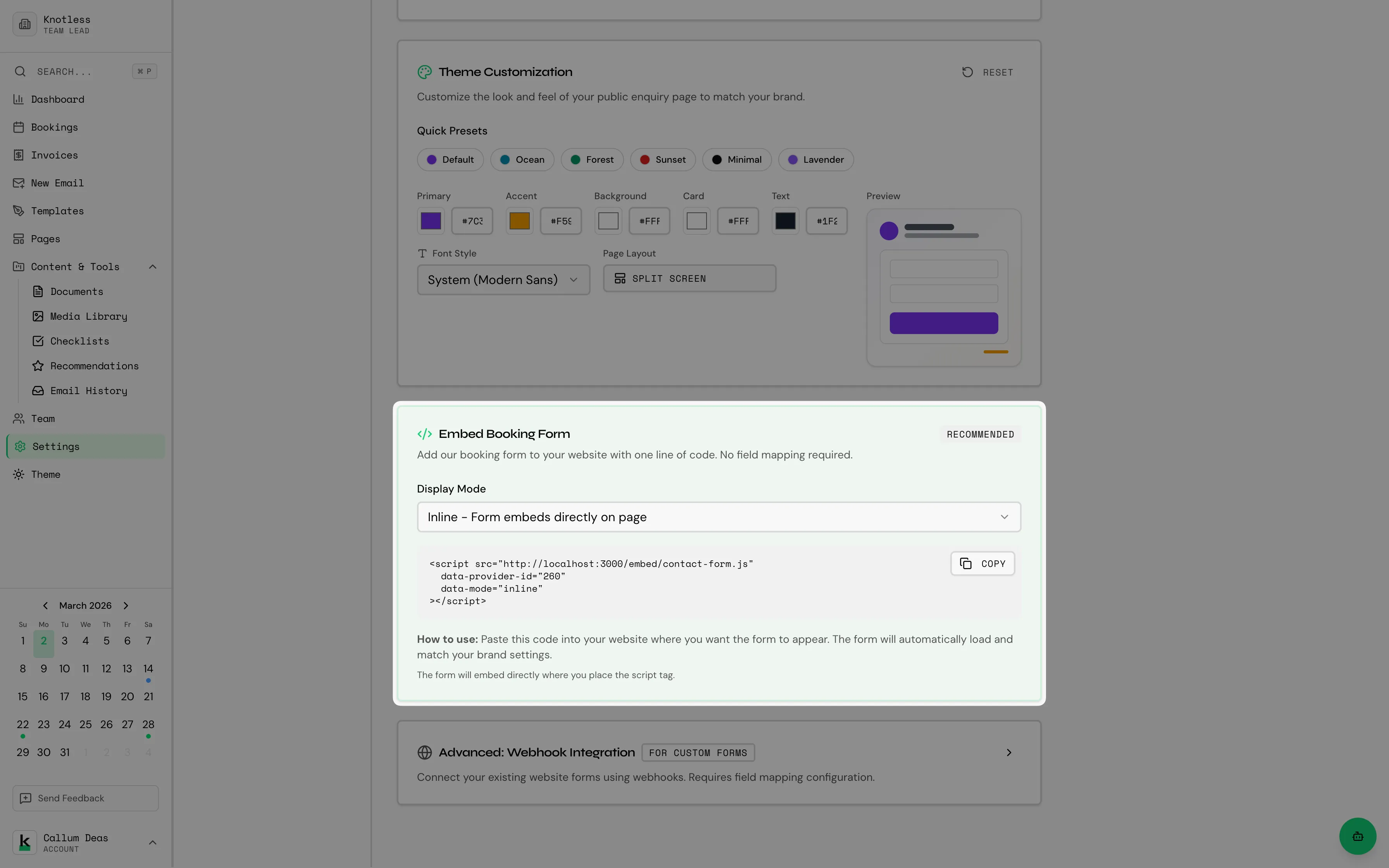
Section titled “Embedding on Your Website”You can also embed the form on your own website using an iframe:
- Go to Settings → Forms
- Copy the embed code provided
- Paste the code into your website’s HTML
The embedded form URL follows the pattern: knotless.co.uk/providers/[your-id]/enquiry/embed
Webhook Integration (Advanced)
Section titled “Webhook Integration (Advanced)”If you already have a contact form on your own website, you can point it at Knotless directly instead of using the hosted page or embed. Go to Settings → Forms → Advanced: Webhook Integration.
Your webhook URL and form key
Section titled “Your webhook URL and form key”You’ll find two things there:
- Webhook URL —
https://api.knotless.co.uk/webhooks/forms/[your-id] - Form key — a secret that identifies your account
Send the form key with every request as an X-Knotless-Form-Key header:
POST https://api.knotless.co.uk/webhooks/forms/123Content-Type: application/jsonX-Knotless-Form-Key: kf_your_key_here
{ "fullName": "Ada Lovelace", "email": "ada@example.com" }
If your form tool cannot send custom headers, you can append the key as a query parameter instead:
POST https://api.knotless.co.uk/webhooks/forms/123?key=kf_your_key_hereThis works, but it is less secure — query parameters end up in server access logs and browser history. Use the header where you can.
Rotating your key
Section titled “Rotating your key”Use Rotate in Settings → Forms if your key is ever exposed. The old key stops working immediately, so update your website form with the new one straight away or enquiries will start failing.
Rate limits
Section titled “Rate limits”Form submissions are rate limited per IP address and per provider. Normal enquiry traffic will
never hit these limits; automated or repeated test submissions might. A limited request gets a
429 response with a Retry-After header telling you how long to wait.
Your hosted enquiry page and embed are throttled separately from submissions, so previewing your own form can never use up the allowance that real enquiries need.
Migration deadline
Section titled “Migration deadline”Requests without a form key are rejected. If you set up a webhook before form keys existed, there is a grace period — until 30 September 2026 — during which unkeyed requests are still accepted under a much tighter rate limit. Add your key before then, or your enquiries will start failing.
Preview Mode
Section titled “Preview Mode”Use the preview button to see exactly how your form will look to potential clients before publishing.
What Happens When a Client Submits
Section titled “What Happens When a Client Submits”When a client fills in and submits the enquiry form:
- A new booking is automatically created in your Knotless dashboard with status Inquiry
- The client’s details are saved
- If you have workflows set up with a Booking Created trigger, they will fire automatically
- You’ll see the new enquiry in your bookings list
Next: Learn about Shared Pages & Proposals and how clients interact with your content.