Files
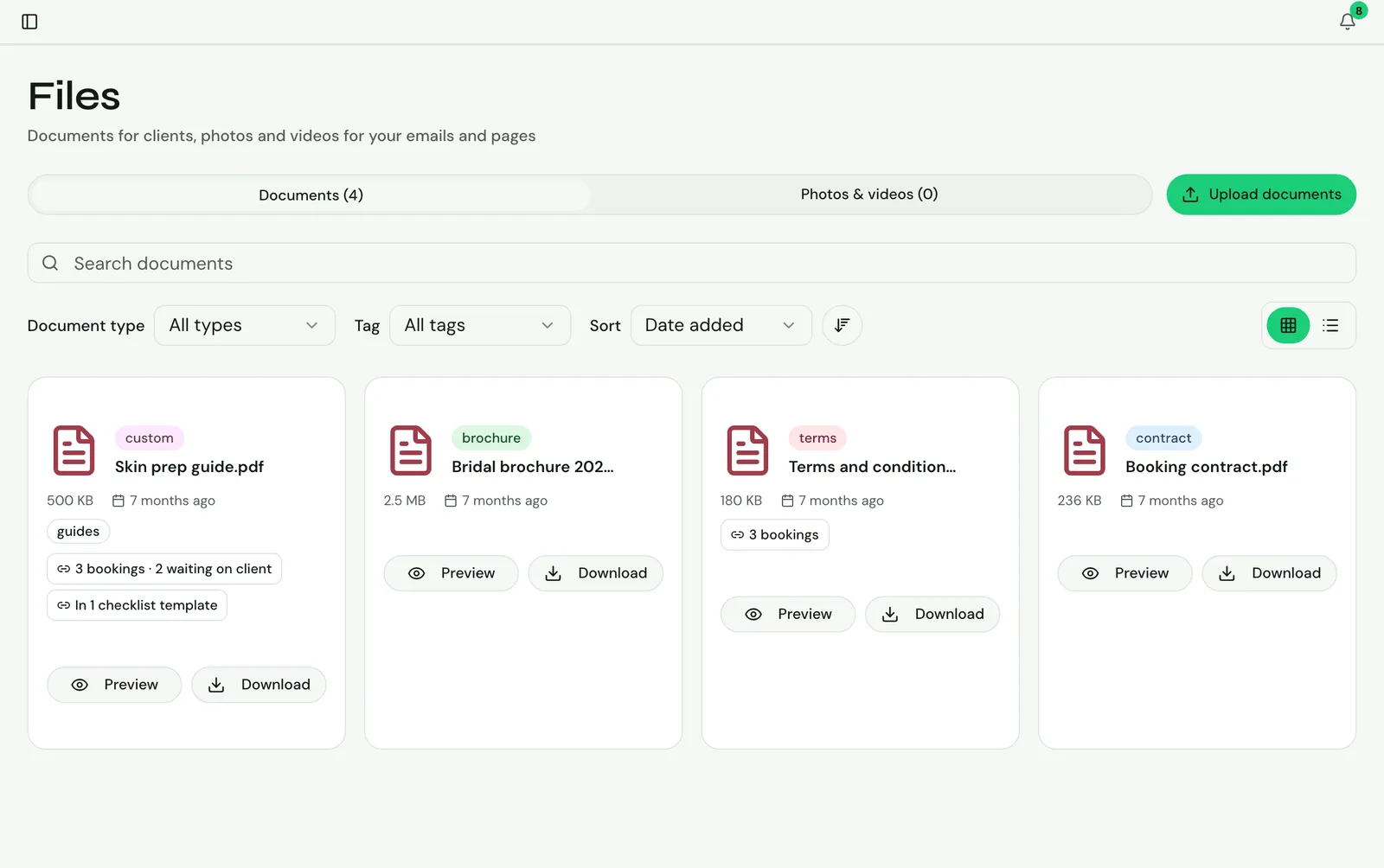
Files holds documents for clients, and photos and videos for your emails and pages. Click Files in the sidebar.
It has two tabs: Documents and Photos & videos.
Uploading
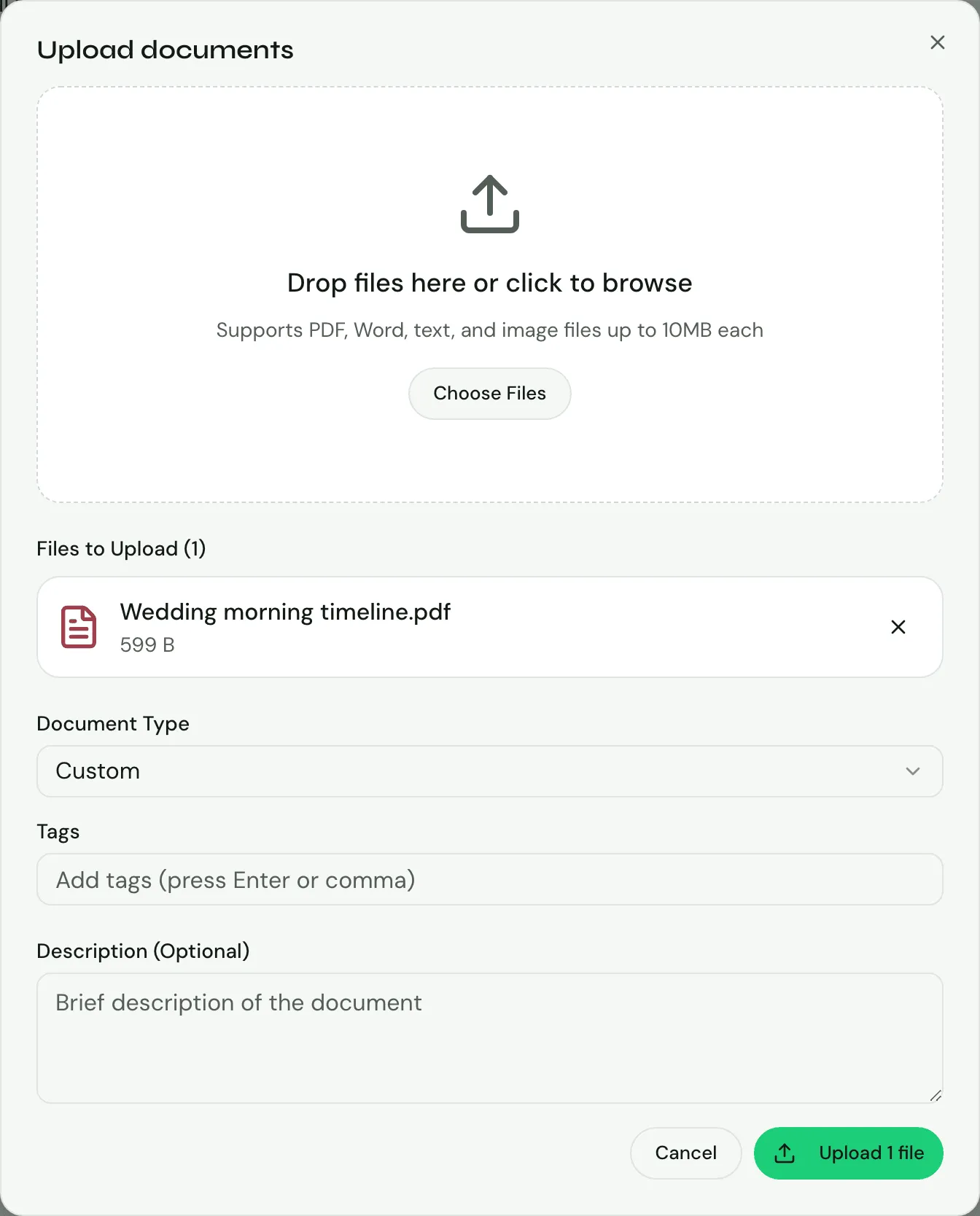
Section titled “Uploading”- On the tab you want, click Upload documents or Upload photos & videos.
- Drop files onto the box, or click to browse.
- For documents, set the Document Type, Tags and an optional Description.
- Documents: PDF, Word, text and image files, up to 10MB each.
- Photos: JPEG, PNG, GIF and WebP, up to 10MB each.
- Videos: up to 500MB each.
Finding files
Section titled “Finding files”- Search: by name, description or tags.
- Document type (Documents tab): Contracts, Brochures, Terms & Conditions or Custom.
- Tags: filter by tag.
- Sort: by Date added, File name or File size (and Document type on the Documents tab).
- Grid view or List view.
Photo details
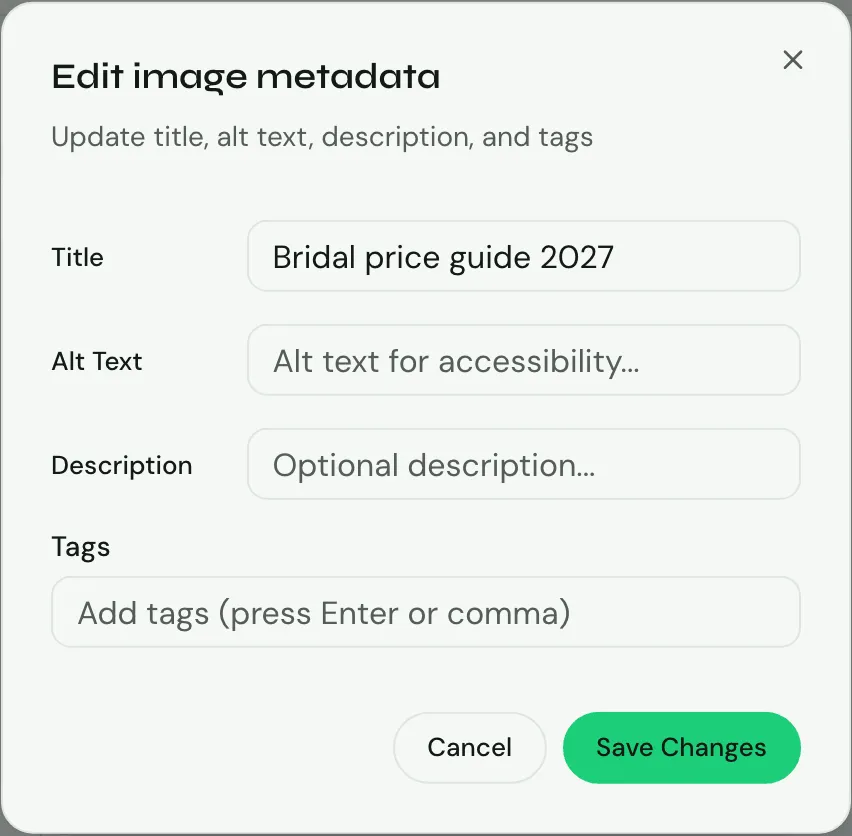
Section titled “Photo details”On the Photos & videos tab, open a photo’s menu and choose to edit its details: Title, Alt Text, Description and tags.
Using files
Section titled “Using files”- Documents are shared with clients from a booking’s Documents card, and can be attached to checklist items and to email templates.
- Photos and videos go into emails and client pages from the builder, and venue photos are added on a booking.
- You can download any file.
Signed agreements
Section titled “Signed agreements”When a client has signed one of your client pages, Signed agreements at the top of Files lists it with the client, the page’s name and the date, plus Download and Open booking. These are the frozen signed copies, not files you uploaded, so you can’t delete them here and they don’t count towards your upload limit. See The signed copy.
Deleting files
Section titled “Deleting files”Knotless tells you where a file is used before you delete it. A deleted photo still used in a template shows as a broken image. A video still used in a template or a sent page can’t be deleted until you remove it from there. A document attached to an email template stops that template sending until you remove it from the template.
Upload limits
Section titled “Upload limits”The Free plan includes 10 photo and video uploads and 5 documents. Premium and Team have no limit. When you’re near a limit, the tab shows how many you’ve used. See Your plan.
Who can use it
Section titled “Who can use it”On a team, the lead can give members Documents access and Images access separately. A member sees only the tabs they have access to, and needs permission to upload or delete.
Next: Team setup.