Clients
Clients lists everyone you’ve worked with. Clients from your bookings and enquiries appear here automatically.
The Clients page
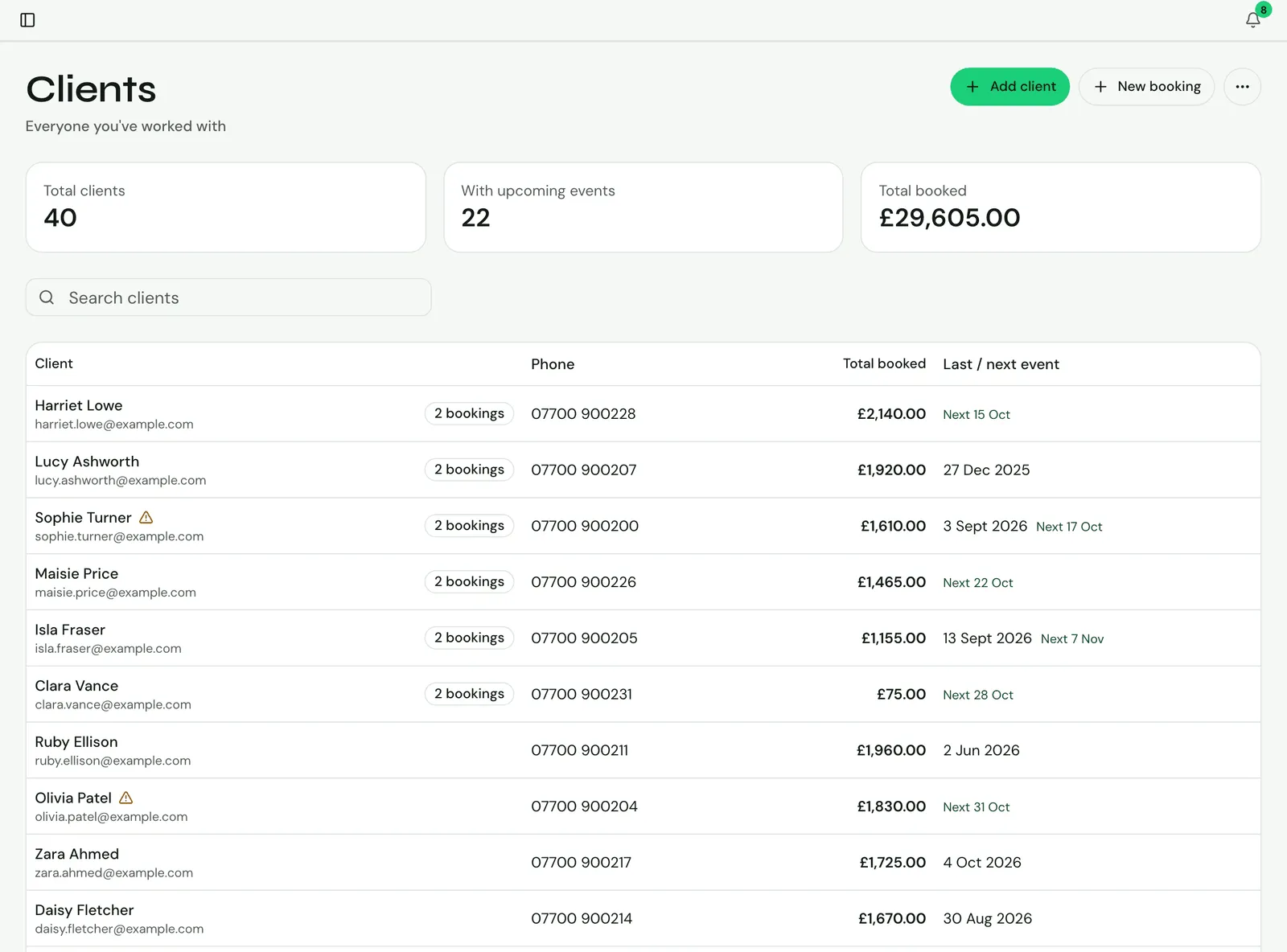
Section titled “The Clients page”Click Clients in the sidebar. At the top are three figures: Total clients, With upcoming events and Total booked (the value of confirmed and completed bookings).
The table shows each client with their Phone, Total booked and Last / next event. Clients with the most bookings are listed first. A health icon marks a client with allergies or a patch test to check.
Use Search clients to find someone by name, email or phone.
Adding a client
Section titled “Adding a client”Team leads and solo providers can click Add client to add someone by hand. You can also add a client while creating a booking, with New client.
Importing and exporting clients
Section titled “Importing and exporting clients”From More client actions on the Clients page:
- Import clients opens the import wizard; see Importing clients and bookings.
- Export downloads your clients as a CSV file; see Exporting your data.
Importing and exporting are for team leads and solo providers.
A client’s page
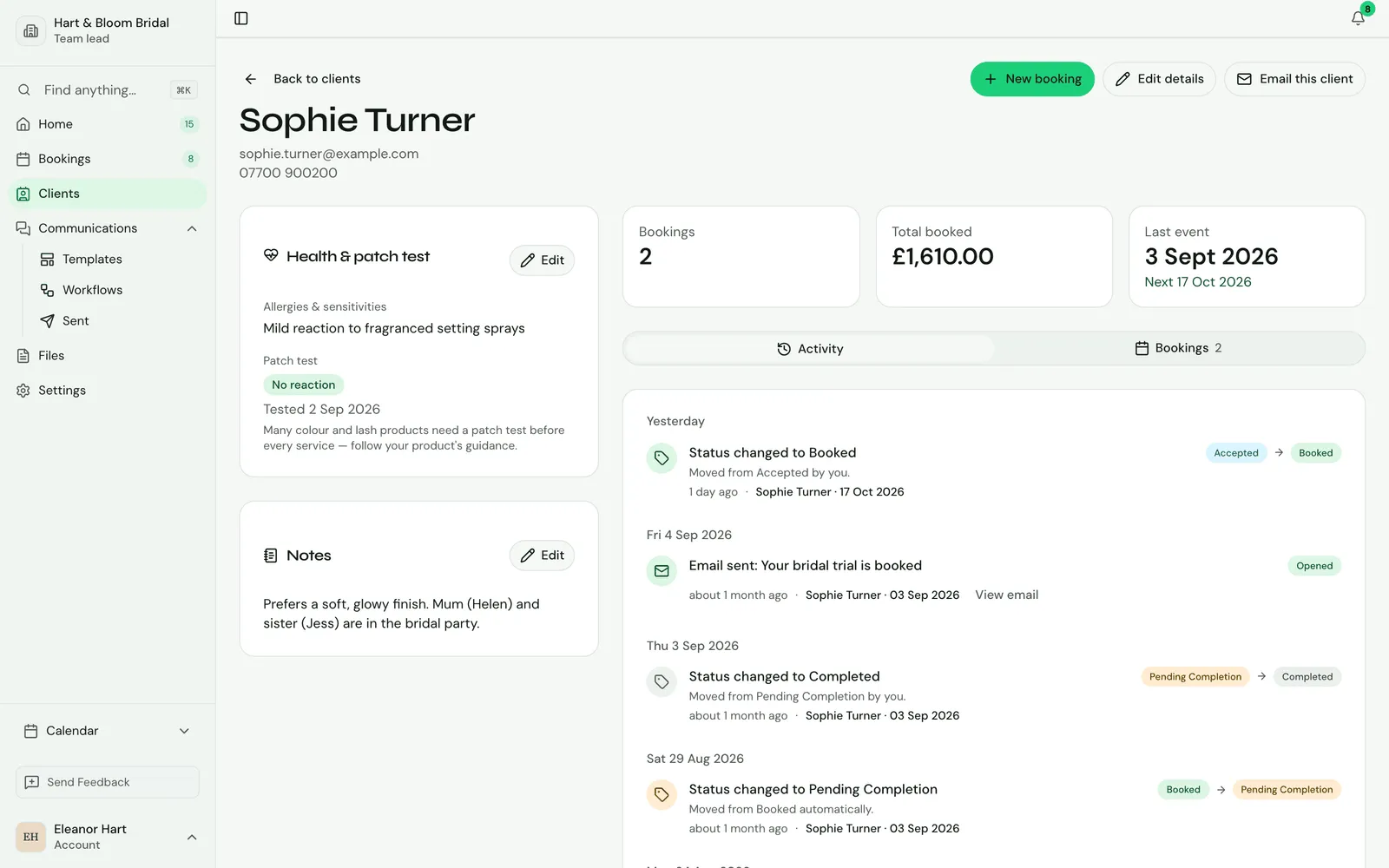
Section titled “A client’s page”Click a client to open their page. The top shows their name, email and phone, with buttons to start a New booking, edit their details, or Email this client (which opens the send drawer; see Sending a template).
Health and patch test
Section titled “Health and patch test”The Health & patch test card records the client’s Allergies & sensitivities and their Patch test. These show as badges on each of their bookings, so whoever does the work sees them.
The Notes card holds anything you want to remember about the client.
Bookings and activity
Section titled “Bookings and activity”Under the figures (Bookings, Total booked and Last event) are two tabs:
- Activity: emails, links, status changes and workflow runs for this client’s bookings.
- Bookings: every booking for this client, with its date, status, party or duration, and value.
Client email addresses
Section titled “Client email addresses”A client’s email address identifies them across every provider they work with, and is how they sign in to the Client portal. It can’t be changed once the client is added; you can edit their name and phone.
If you enter an email that’s already one of your clients, Knotless tells you: in New booking, choose that client instead; in Add client, use Open their profile.
Who can use it
Section titled “Who can use it”On a team, people with the Clients permission see the clients on bookings assigned to them. Only the team lead can create, import or export clients.