Venues
Go to Settings → Business → Venues. It has two tabs: Can’t service and Favourites. Venues pages are for team leads and solo providers.
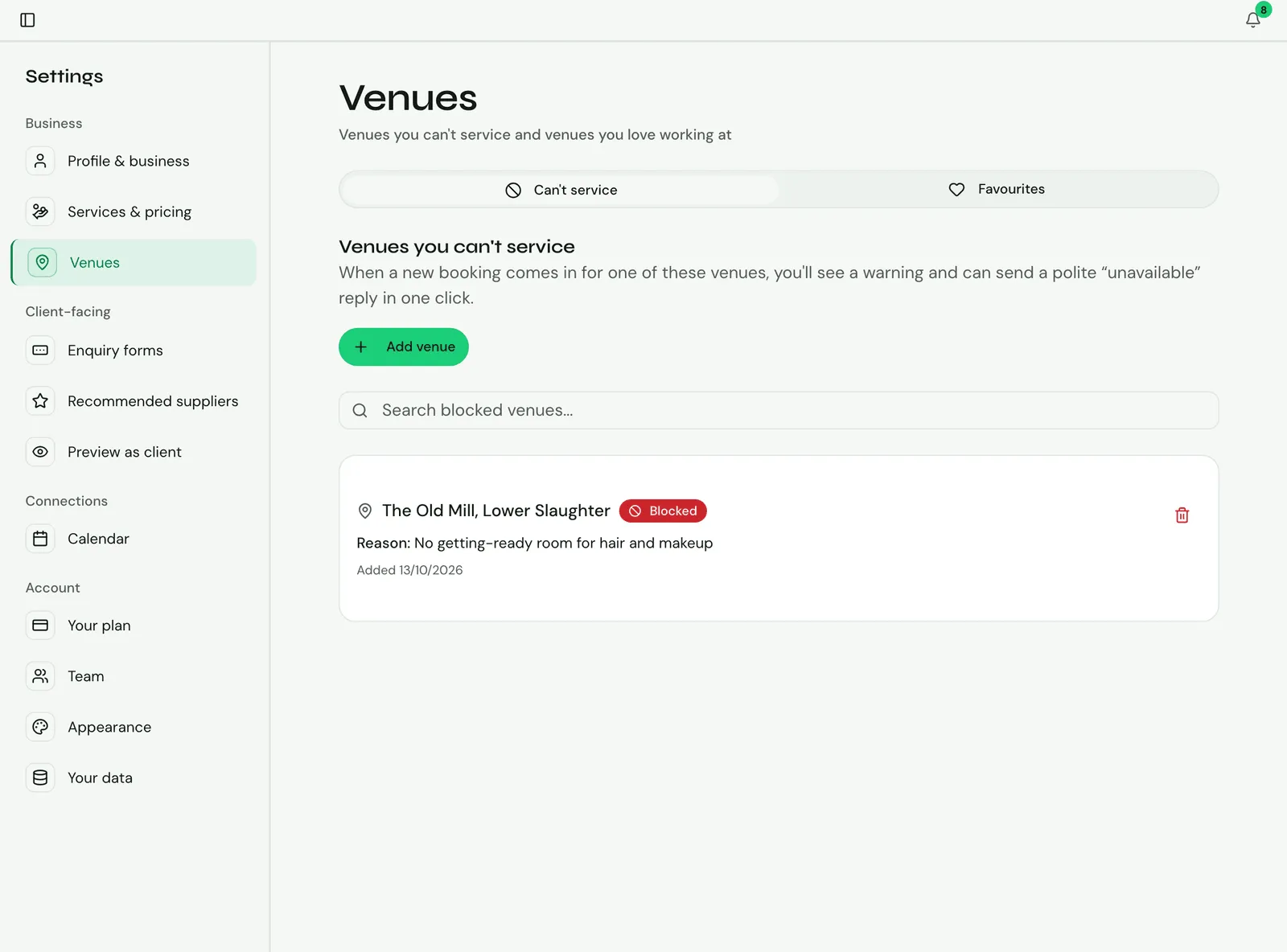
Venues you can’t service
Section titled “Venues you can’t service”Some venues you can’t work at: too far, or with rules that don’t suit you. Add them to Can’t service, and when a new booking comes in for one of them, you’ll see a warning and can send a polite “unavailable” reply with Send Unavailable Email, after previewing it and adding a message if you like.
- Click Add venue.
- Type the venue, or pick it from the suggestions as you type. It must be matched on Google Maps.
- Add a Reason if you like, such as “too far from base”.
- Click Add venue.
Blocked venues show a Blocked badge on bookings and in the Bookings list. To take a venue off the list, click its remove button and confirm.
The Can’t service list is on the Premium and Team plans. See Your plan.
Favourite venues
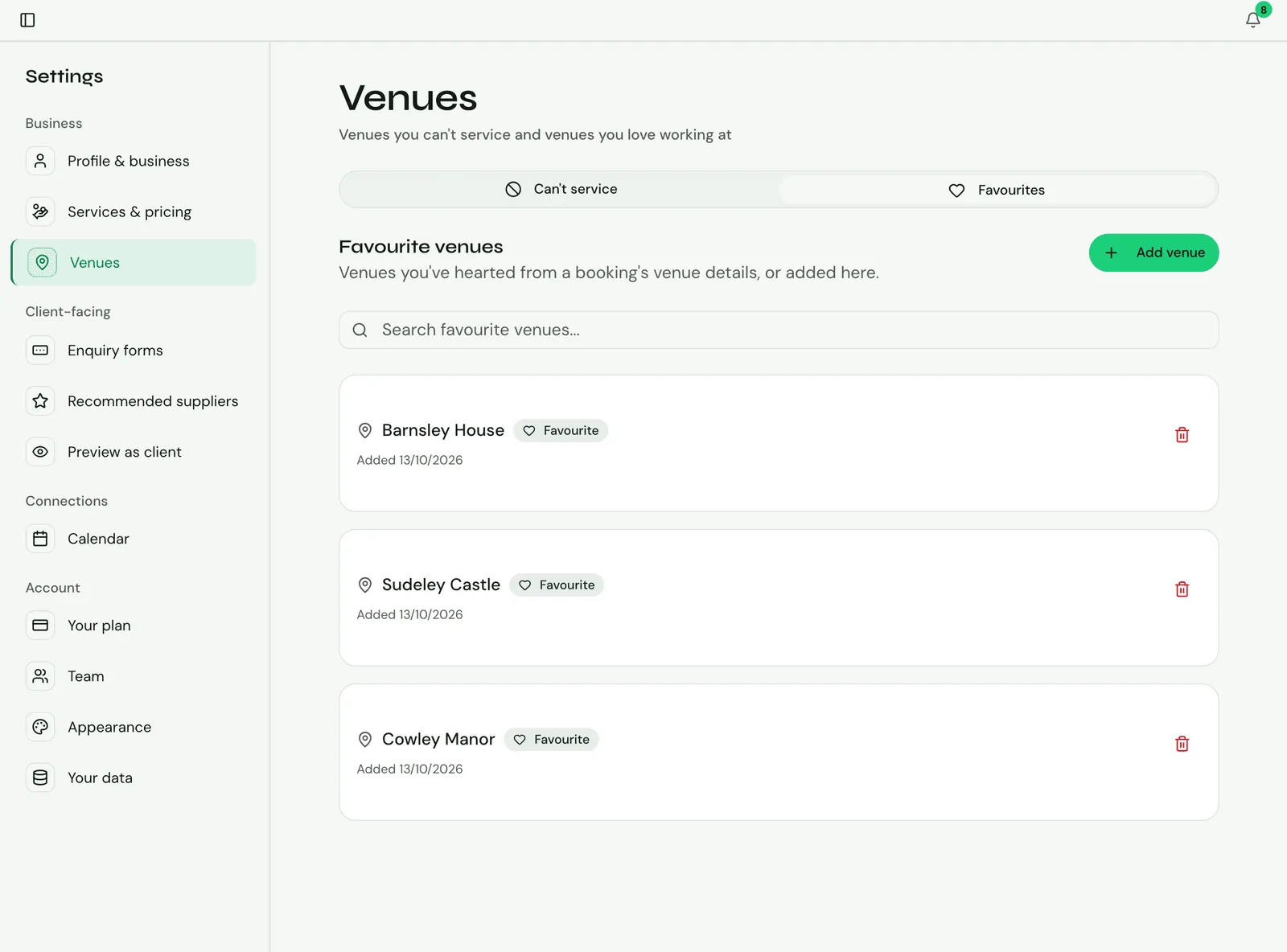
Section titled “Favourite venues”Favourites is a list of venues you love working at, on every plan.
- Click Add venue to add one here, or choose Favourite on a booking’s Venue photos card.
- Click the remove button to take one off.
Your own venue photos
Section titled “Your own venue photos”Photos of a venue are added on a booking at that venue, in its Venue photos card. Your emails and pages use them for that venue. See Day plan.