Preferred providers
On a team account, a client can say which of your team members they’d like for each service, in order. These are their preferred providers. Knotless uses them, together with your team’s own priority order, whenever it assigns someone automatically.
Preferred providers are for team accounts only. Solo providers don’t see them.
How clients choose
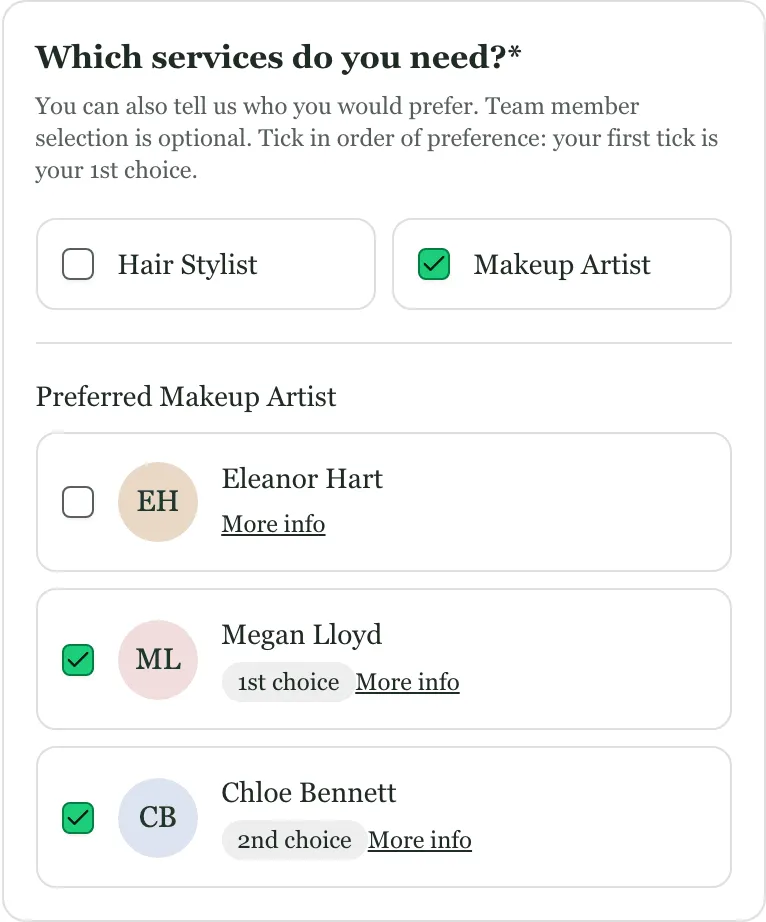
Section titled “How clients choose”On your hosted enquiry page or embedded form, the client picks the services they need under Which services do you need?: “You can also tell us who you would prefer. Team member selection is optional.” Once they tick a service, a “Preferred {service}” section (for example “Preferred Bridal hair”) lists the team members who cover it, with their photos and a More info link to their profile.
- The client ticks the people they’d like, in order. The first tick is their 1st choice, the next their 2nd choice, and so on.
- Unticking someone moves everyone after them up a place.
- Only team members who cover the service, with Client visible switched on for it, are listed. Set this on each member’s profile; see Team setup.
- The picker is shown for wedding and event enquiries (the Event booking type), not appointments.
Choices from your own website form
Section titled “Choices from your own website form”If clients enquire through your own website form, its “1st choice”, “2nd choice” and “3rd choice” fields can become ranked preferences too, for each service it asks about (hair and makeup, say). See Provider choices from your website form, or, for a form that sends Knotless field names, The client’s preferred team members.
They show on the booking like any other client’s picks (below), so you can check who’s free and assign without a workflow.
Where you see them
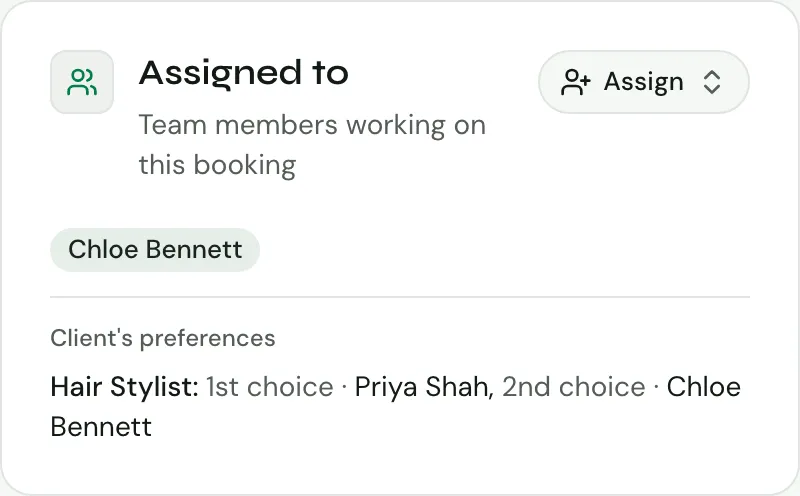
Section titled “Where you see them”Open the booking and go to its Team & automation tab. In the Staffing card, each service lists the client’s picks first, in their order and marked 1st, 2nd and so on, for example:
Hair · 1 needed · not filled
- 1st Cal · Free · Assign
- 2nd Bea (left the team)
A team member sees the same names, without the buttons. Someone marked (left the team) has deleted their Knotless account and won’t be assigned. A member you remove from your team no longer appears in the list.
How Knotless picks a provider
Section titled “How Knotless picks a provider”When Knotless assigns someone automatically, it goes through the client’s picks for each service in this order:
- The client’s ranking: their 1st choice first, then their 2nd, and so on. Picks without a rank come after ranked ones.
- Where the client didn’t rank (or two picks are equal), each member’s Priority for that service from Team setup: lower numbers first.
Only people who cover the service and are free at the booking’s time (with no other booking overlapping it) are assigned. A client’s pick never makes someone eligible for a service they don’t cover.
Automatic assignment in a workflow
Section titled “Automatic assignment in a workflow”In the workflow editor, the Assign group of the add-step menu has three steps (team accounts only):
- Check preferred providers’ availability: checks the booking’s time against existing assignments for the client’s preferred team members. Follow it with an If on Any Preferred Provider Available to do something different when nobody is free.
- Assign a preferred provider: assigns the client’s top-ranked available preferences for each service, as many as the booking needs (one when that can’t be worked out); team priority breaks ties. Anyone already assigned to that service counts towards it. When the client’s top choice for hair is also their top choice for makeup, they’re put on both. If the client’s list runs out first, it assigns who it can and the rest is up to you.
- Ask preferred providers in turn: emails the client’s preferred providers in their order and assigns whoever accepts, until each service has as many people as the booking needs. Each request says what’s involved: how many people need the service on each day, when to start and be ready by, and roughly how long it takes, so the person asked can judge whether it’s too much. See Ask preferred providers in turn.
Telling the client who’s coming
Section titled “Telling the client who’s coming”Once someone is assigned, an email can introduce them, with their name, photo and bio from their team profile. See Assigned provider fields.