Ask preferred providers in turn
Ask preferred providers in turn is a workflow step for team accounts. It emails the client’s preferred providers in the client’s order and assigns whoever accepts, until each service has everyone it needs. If it ends short, the workflow can flag the booking for review and tell you.
What the step does
Section titled “What the step does”- For each service on the booking, Knotless emails the client’s 1st choice and waits for an answer. When the booking needs more than one person for the service, it asks that many people at once (see When a day needs more than one person).
- If someone declines, or doesn’t answer in time, it asks the next person on the client’s list.
- Whoever accepts is assigned to the service they were asked about, until the service has everyone it needs. Someone asked about hair and makeup who says yes to both is put on both.
- When the list runs out, no one else is asked: only the client’s preferred providers are ever asked.
Team members without app access are never asked, because Knotless never emails them about a booking (see Team members without app access). They aren’t dropped silently: the Provider requests card lists any who are free under their service, in the client’s order, as “Can’t be asked by email: no app access. Assign by hand.” with an Assign button. If the service is still short when asking ends, the step’s line on the workflow timeline and the review flag name them, for example “Hair: Ella Smith (1st choice) wasn’t asked: no app access.” The lead’s email also says how the others answered (“Rosa Lee declined.”). The step still takes its No one confirmed path. Assign preferred provider (auto-assign) still assigns them. In the workflow builder, the step warns you when no one on your team can be asked.
Each service is handled separately, so the hair and make-up requests can go out at the same time. A service that already has everyone it needs is skipped, and nobody already assigned to the booking is asked again. If the booking is cancelled or declined while asking, the outstanding requests are withdrawn.
When a day needs more than one person
Section titled “When a day needs more than one person”When the booking’s numbers say a service needs more than one person on a day (see How many team members a day needs), the step fills every seat: for a party of ten who need two people for makeup, it asks the client’s first two choices at once, and asks the next person whenever one of them declines or runs out of time. It takes the largest number any day of the booking needs. When the numbers can’t be worked out (no start time, no party size, or your price list doesn’t time each service separately), it asks for one person, as before.
- Anyone already assigned to the service counts towards it, however they were assigned. Someone put on hair only doesn’t count towards makeup; to have them do both, assign them to makeup too in the Staffing card. Someone added from the mobile app’s team list counts towards every service they offer. The booking’s Day plan then shows whether one person can really fit both in.
- If the numbers change while it’s asking, it follows them: it asks more people when the booking needs more, and tells the newest asks they’re no longer needed when it needs fewer.
- Once a service has everyone it needs, anyone still waiting to answer for it is told they’re no longer needed. Someone who accepts after that is told the request is no longer open.
- If the list runs out with some seats still open, for example one of two people for makeup confirmed, the step finishes on No one confirmed (see The two paths).
To add the step, open a workflow, click + where you want it and choose Ask preferred providers in turn from the Assign group. It’s only offered on team accounts.
Hours to wait for each provider
Section titled “Hours to wait for each provider”In the step’s settings, Hours to wait for each provider is how long each person has to answer: whole hours, 1 to 72 (default 24). If they don’t answer in time, the next person is asked.
What the provider receives
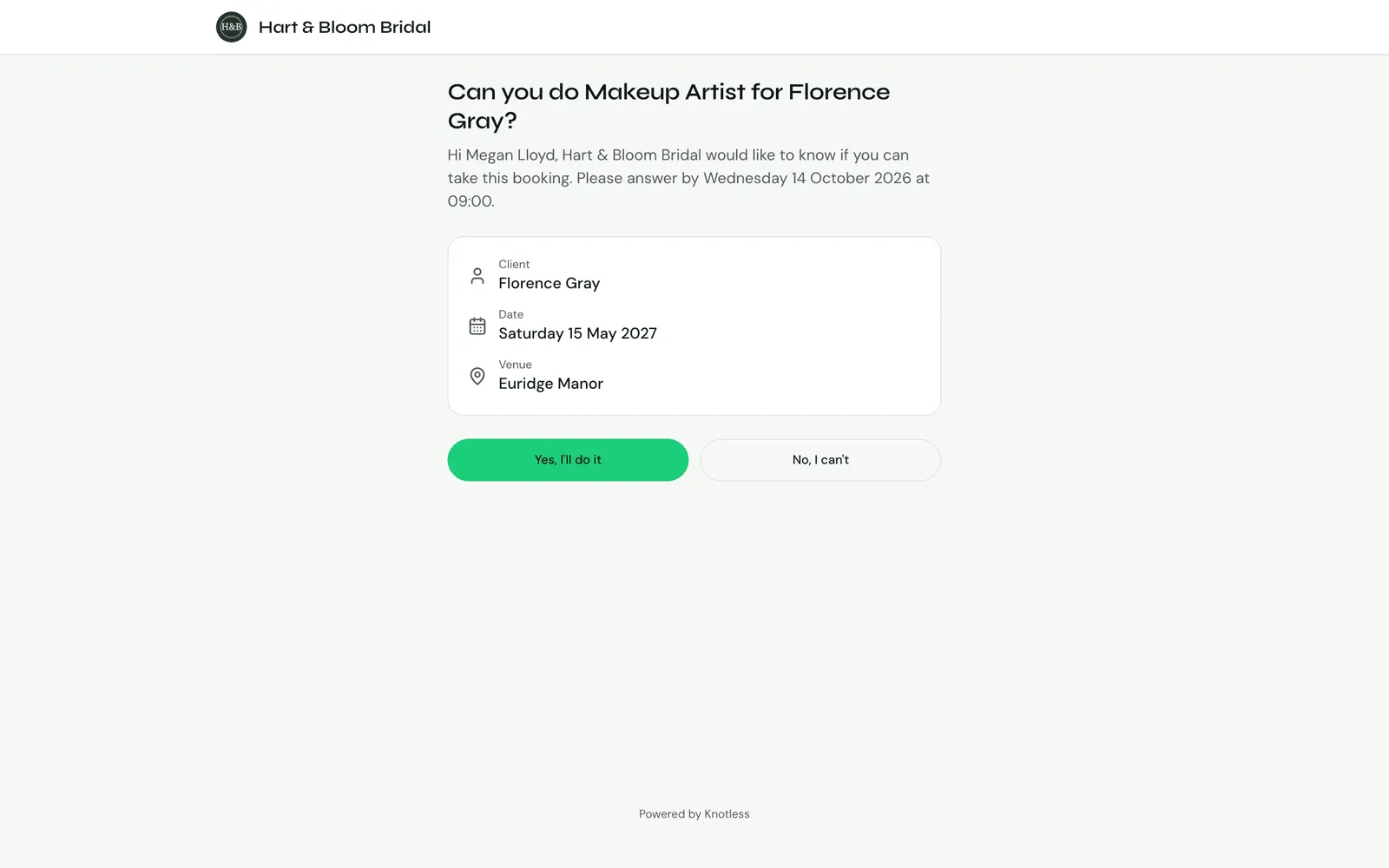
Section titled “What the provider receives”Each person asked gets an email titled “Can you do {service} for {client} on {date}?” (the service in plain words, such as “hair” or “makeup”), with the booking’s details, the time to answer by, and Accept and Decline buttons. They don’t need to sign in.
The buttons open a page, “Can you do {service} for {client}?”, showing the booking and when to answer by. Nothing is sent until they choose Yes, I’ll do it or No, I can’t. Then they see one of:
- You’re booked: they accepted and are now assigned, and the booking is booked.
- You’re down for {date}: they accepted and are now assigned, but the couple hasn’t booked yet: “The couple hasn’t booked yet, so {your business} will confirm once they do.” Their Knotless notice says the same.
- “Thanks for letting us know”: they declined, and someone else is asked.
- You’re already booked then: they’re already on a booking that’s accepted or later at that time on Knotless, so someone else is asked. Being pencilled in on another enquiry doesn’t stop them accepting.
- This request is no longer open: the request was taken back, ran out of time, or someone else already took it.
Anyone whose request is withdrawn or runs out of time gets a “No longer needed” email.
If you’ve turned on Show team members their pay when asking them to work, the email and the page also show their own pay for the booking. See Showing pay when you ask.
What’s involved
Section titled “What’s involved”On a wedding or event booking, the email and the page also say what’s involved for the service they’re asked about, for each day of the booking (trials aren’t included):
- how many people need it, e.g. “10 people need makeup.”;
- when to start and when everyone must be ready, e.g. “Start from 05:00, everyone ready by 13:00.” (from your earliest start and an hour before the start time, in your time zone);
- roughly how long it takes, e.g. “About 7 hr 30 min of makeup in all.”;
- when one person can’t fit everyone in, how many the day needs: “This day needs 2 people for makeup; you’d be one of them.”;
- when one person’s makeup takes longer than the time before everyone must be ready: “This may not fit in the time; talk to Jane Smith (hello@yourbusiness.com).”
It ends with “If that’s too much for you, decline, or contact Jane Smith (hello@yourbusiness.com) first.”: your name, with your business email (or your account email if you haven’t set one). The email’s title then says the numbers too: “Can you do makeup for 10 people for {client} on {date}?”.
The numbers are worked out as in How many team members a day needs. A day it can’t work out (no start time, no party size, or nothing booked for that service) is left out rather than guessed. A day where another service doesn’t fit still shows the numbers for this one, without how many people the day needs. If your price list doesn’t time each service separately, it says how many people are getting ready (“10 people getting ready.”) and how long that takes across every service, and the email’s title stays without a number. When it says “This day needs 2 people for makeup”, the step is asking two people.
The two paths
Section titled “The two paths”The step has two built-in paths, like an If:
- Provider confirmed: every service on the booking has everyone it needs.
- No one confirmed: at least one service doesn’t. This includes a service where some people confirmed but not as many as the booking needs.
Exactly one path runs. Steps below the block run after either path. A client with no preferred providers goes straight to No one confirmed.
Flag for review
Section titled “Flag for review”Flag for review (in the Update the booking group) marks a booking as needing your attention. Give it a Reason, such as “No preferred provider confirmed. Assign someone to this booking.”
A flagged booking:
- shows a Needs review banner at the top of the booking, with the reason, who flagged it and when;
- is listed when you turn on the Needs review filter on the Bookings page.
The flag stays until a team lead (or a solo provider) clicks Clear on the banner. Team members see the banner but can’t clear it. Once someone is assigned to the booking, the banner says who and asks whether to clear it, since the reason may be about something else.
A booking flagged by Ask preferred providers on the booking page (when not everyone confirmed) clears itself as soon as you assign someone.

Wait until a provider is assigned
Section titled “Wait until a provider is assigned”To carry on once someone has been assigned, add a wait: choose Until the client acts or the status changes from the Wait group, then set Wait For to A provider is assigned (team accounts only).
It carries on when someone is assigned to the booking: by you, by a workflow, or by accepting a request. If someone already is, it carries on straight away. Set a Timeout in days. If nobody is assigned in that time, the workflow stops there: the run shows Stopped on the booking’s Workflow Activity card, and the steps after the wait don’t run. To carry on, open the run’s timeline and choose Retry step (wait again) or Skip and continue (run the steps after it); see Running a workflow and its history.
The Provider Assigned start
Section titled “The Provider Assigned start”A workflow can also start when someone is assigned. Choose Provider Assigned as the workflow’s start (team accounts only). It starts whenever a team member is assigned to a booking, however they were assigned: by accepting a request, by hand, or by a workflow.
Starter: Find and confirm a provider
Section titled “Starter: Find and confirm a provider”The Find and confirm a provider recipe (team accounts only; see From a recipe) sets up the whole journey. It starts on Booking Created (when a client sends an enquiry):
- Ask preferred providers in turn, 24 hours each.
- If No one confirmed (nobody, or not as many as the booking needs): Flag for review (“Not all the providers this booking needs have confirmed. Assign someone to this booking.”), email you, then wait until a provider is assigned (up to 14 days).
- Then, on either path: email the client (the “Provider Confirmed” email names whoever was assigned), email the assigned provider (“You’re Confirmed for a Booking”), and add a checklist. If the wait timed out without anyone being assigned, these don’t run until you choose Retry step or Skip and continue on the stopped run.
Asking from the booking page
Section titled “Asking from the booking page”You don’t need a workflow to ask. On a team account, when none of your active workflows contains the Ask preferred providers in turn step, a team lead sees Ask preferred providers in the Provider requests card on the booking’s Team & automation tab: “Ask the client’s preferred providers, 24 hours each, as many at a time as the booking needs. Whoever accepts is assigned.”
- Open the booking and go to its Team & automation tab.
- Click Ask preferred providers.
- While it runs, the card shows Asking providers… and each request as it goes out.
It asks exactly like the workflow step: in the client’s order, as many people per service as the booking needs, 24 hours each, and whoever accepts is assigned.
- Stop asking stops it. Anyone with an open request is told it’s no longer needed, and no one else is asked.
- If nobody confirms, the booking is flagged for review (naming the services still without anyone) and the lead who pressed the button gets a “No one confirmed for …” email.
- If some confirm but not as many as the booking needs, the booking is flagged too (“Not everyone this booking needs has confirmed: 1 of 2 people for makeup. Assign the rest yourself.”) and the lead gets a “Team members still needed for …” email.
- If a service is short and one of the client’s choices couldn’t be asked because they have no app access, the email names them and how the others answered (“Hair: Ella Smith (1st choice) wasn’t asked: no app access. Rosa Lee declined.”), the flag names only who wasn’t asked, and the email’s subject is “Team members still needed for …”, never “No one confirmed”.
- Once it has finished or been stopped, Ask again asks anyone left who hasn’t already declined this booking, for the seats still open.
- If every service already has everyone it needs, or none of the client’s preferred providers can be asked right now (for example, they’re all busy that day, already assigned, have already declined or have no app access), the button isn’t offered. Anyone free without app access is still listed on the card to assign by hand.
The button is hidden on every booking while any active workflow contains the ask step, because that workflow does the asking.
Seeing requests on a booking
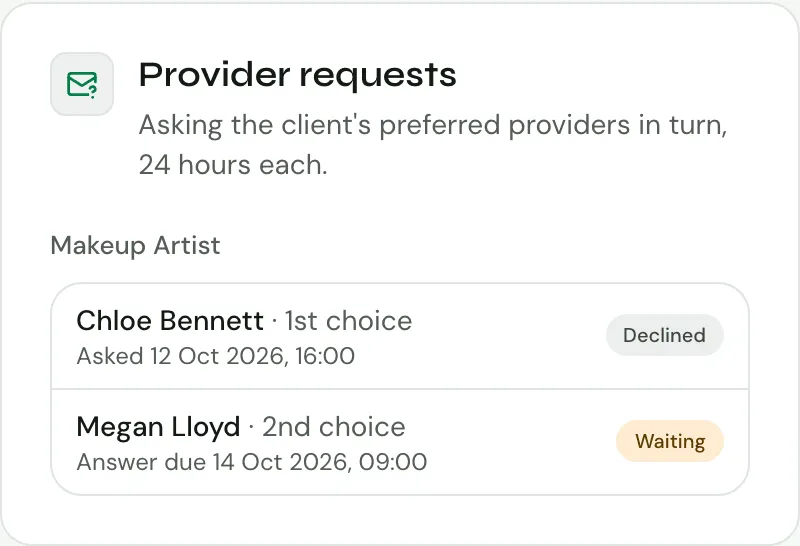
Section titled “Seeing requests on a booking”On a booking’s Team & automation tab, team leads see a Provider requests card: who was asked for each service, the client’s rank for each person, when their answer is due, and whether they accepted, declined or ran out of time. Its summary line says where things stand now, for example “Finished: every service has everyone it needs.”, “Finished: 1 of 2 people for makeup confirmed.” or “Finished: no one confirmed for Hair Stylist.”, or why it ended early, such as the booking no longer going ahead. When a short service has someone to assign by hand (no app access), it reads “Finished: Hair Stylist still needs someone.” instead. A service that needs more than one person shows how many it has, such as “Makeup Artist · 1 of 2”. Before anyone is asked it says “No one has been asked yet.”, or “No one needed asking.” when every service already had everyone it needs. When the only people left are without app access, the card still shows (even when a workflow does the asking), lists them with Assign, and says, for example, “Ella Smith has no app access, so can’t be asked by email. Assign by hand.”