Your data
Go to Settings → Account → Your data. Team leads and solo providers can import and export; everyone can change their cookie choices and delete their own account.
Importing clients and bookings
Section titled “Importing clients and bookings”Bring your clients and bookings over from a spreadsheet or another tool. Importing doesn’t send emails or start “booking created” workflows. Upcoming bookings are picked up by your “days before event” workflows, unless you choose otherwise in the preview.
Your file needs one row per booking, up to 2,000 rows. Save Excel or Google Sheets files as CSV first. Clients are matched by email, and duplicates are skipped, so it’s safe to import the same file again.
- Under Import from CSV, click Start import.
- Booking type: choose Events (weddings and other events, with a date and venue) or Appointments (with a date, start time and duration).
- Upload: choose your CSV file. Download template gives you a file with the right columns.
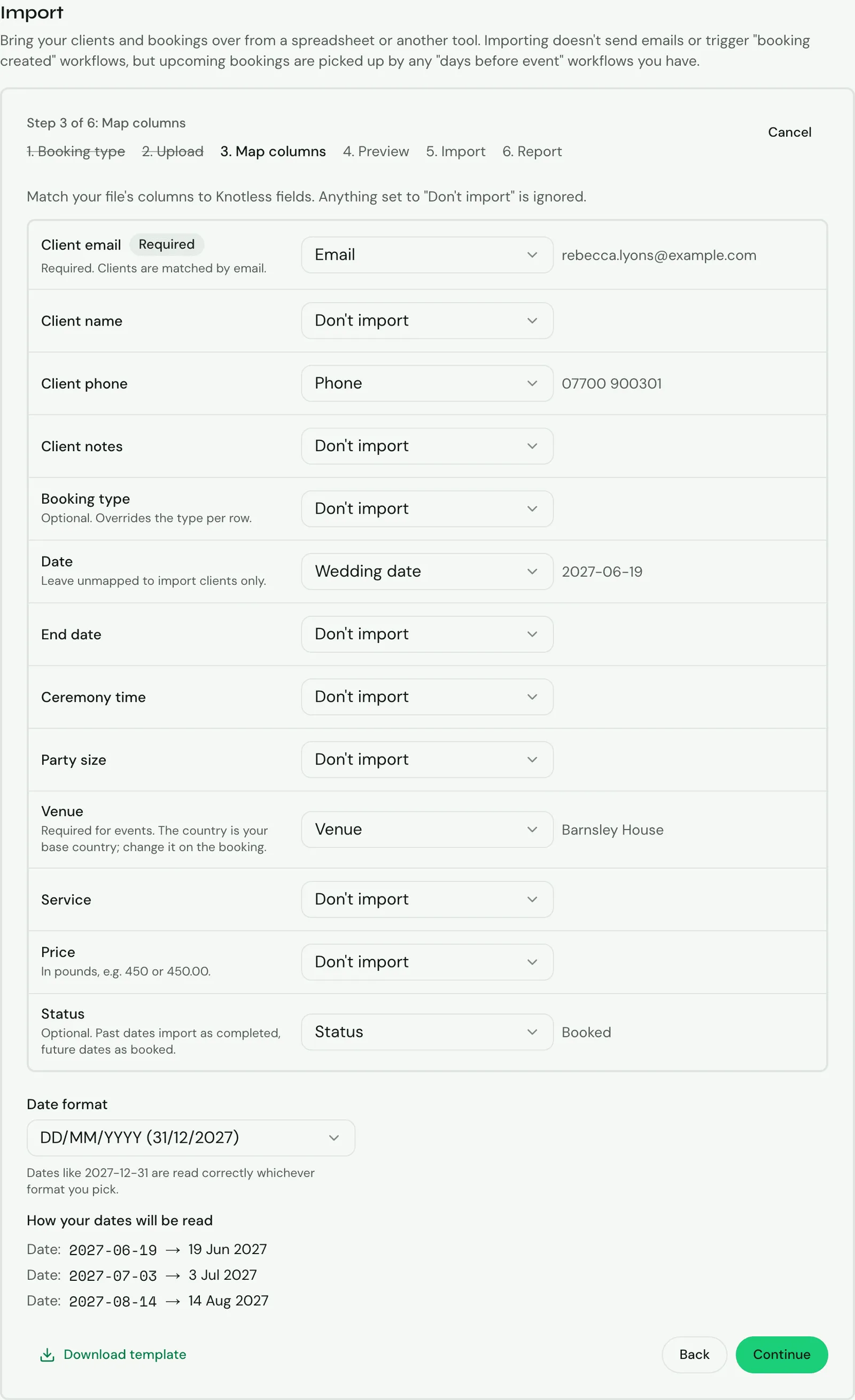
- Map columns: for each Knotless field, pick the column it comes from, or Don’t import. Client email is required. Choose the Date format your file uses, and check the dates are read correctly.
- Preview: see which rows are valid, which have warnings or errors, and which are duplicates that will be skipped. If the file has upcoming bookings, the preview lists the active “days before event” workflows they will start, and how many bookings each one will start for. Click Import {n} rows.
- Report: how many were created, skipped or failed, with links to View clients and View bookings.
To import clients only, leave the booking fields unmapped. Past dates import as completed and future dates as booked. A mapped status is used for future bookings; past bookings always import as completed.
If your previous tool has already sent reminders or payment requests for these bookings, tick Don’t start “days before event” workflows for the bookings in this import in the preview. This stays in place for those bookings, including if you change a date or turn on a workflow later. Workflows that start from something else, such as a status change, still run.
If a client in your file already has a Knotless account, their bookings appear in their client portal straight away.
Exporting your data
Section titled “Exporting your data”Download your data as CSV files you can open in Excel or Google Sheets:
- Export clients: every client with their email, name, phone, notes, allergies, and patch test date and result.
- Export bookings: every booking with its client, in the same columns as the import template, followed by Currency, Tax (the VAT in the price), Paid (what’s been paid and kept, through invoices or recorded by you) and Outstanding (still to pay; nothing for a booking that’s completed or cancelled unless an invoice on it is unpaid). A booking that hasn’t been priced yet has a blank Price, and imports again unpriced. The import ignores these extra columns, so the file can still be imported.
- Export payments: every payment, for your accounts: the date paid, the client, the booking’s date and service, where it came from (Stripe, Square, Bank transfer, Cash, Card (outside Knotless) or Other), what it was for, the amount, anything refunded, the currency, the invoice number and your note.
On a team, import and export are managed by the team lead.
Cookie settings
Section titled “Cookie settings”Choose how much Knotless analytics collects in this browser, and whether it may record your sessions:
- Essential cookies are always on. They’re needed for signing in and for the site to work.
- Analytics is on unless you switch it off. It counts visits, shows which features are used and catches errors, without linking what you do to your name or account. It is never used for advertising. If you switch it off, our analytics stops collecting anything from that browser.
- Session recordings are off unless you switch them on. Only the dashboard is recorded, and the text on it is hidden apart from menus and page titles, so your clients’ names and details aren’t recorded. Recordings are kept for up to 30 days. Pages opened from a link sent to you, such as a proposal, a team invite or a calendar link, are never recorded.
Your choice is saved for the browser you’re using. You can also open Cookie settings from your account menu at the bottom of the sidebar.
Deleting your account
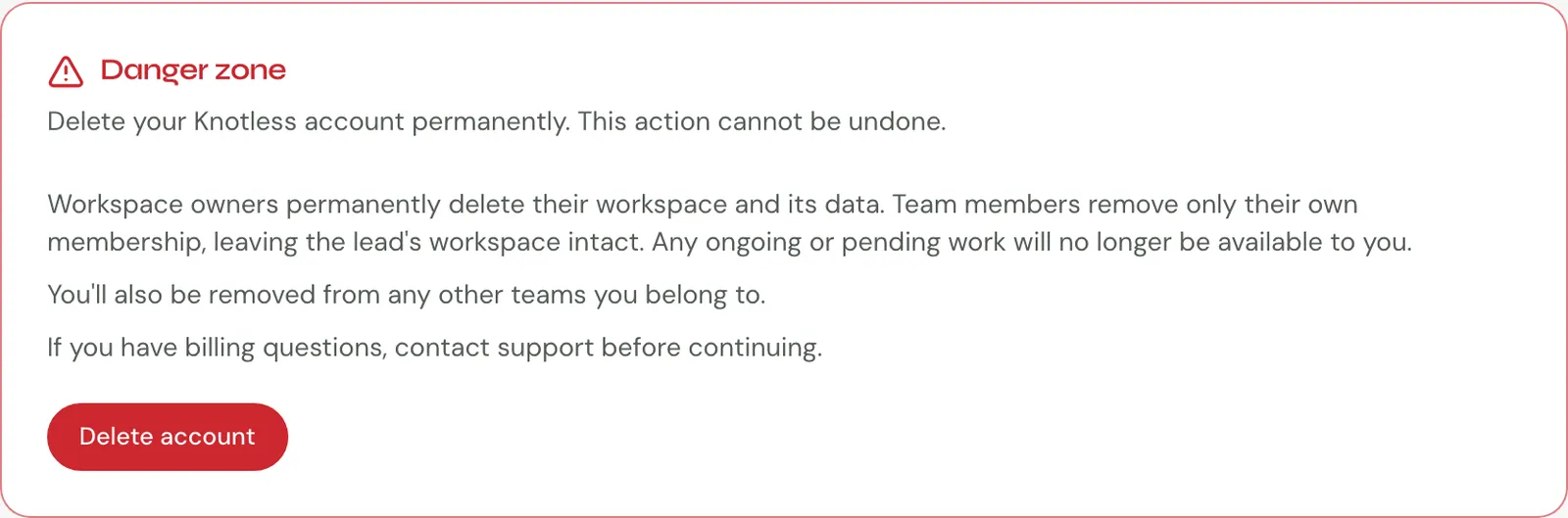
Section titled “Deleting your account”Under Danger zone, click Delete account, type DELETE to confirm, and click Delete account again. You may be asked to confirm it’s you.
- If you own the workspace, this permanently deletes it and its data. Any subscription is cancelled straight away.
- If you’re a team member, it removes only your own membership. Your lead’s workspace stays as it is.
- You’re also removed from any other teams you belong to.
This can’t be undone. Export your clients and bookings first if you want to keep them. If you have billing questions, contact hello@knotless.co.uk before deleting.