AI assistant
The AI assistant answers questions about your business from your live Knotless data, and how-to questions from this help site. It’s included on the Premium and Team plans (see Your plan).
Opening the assistant
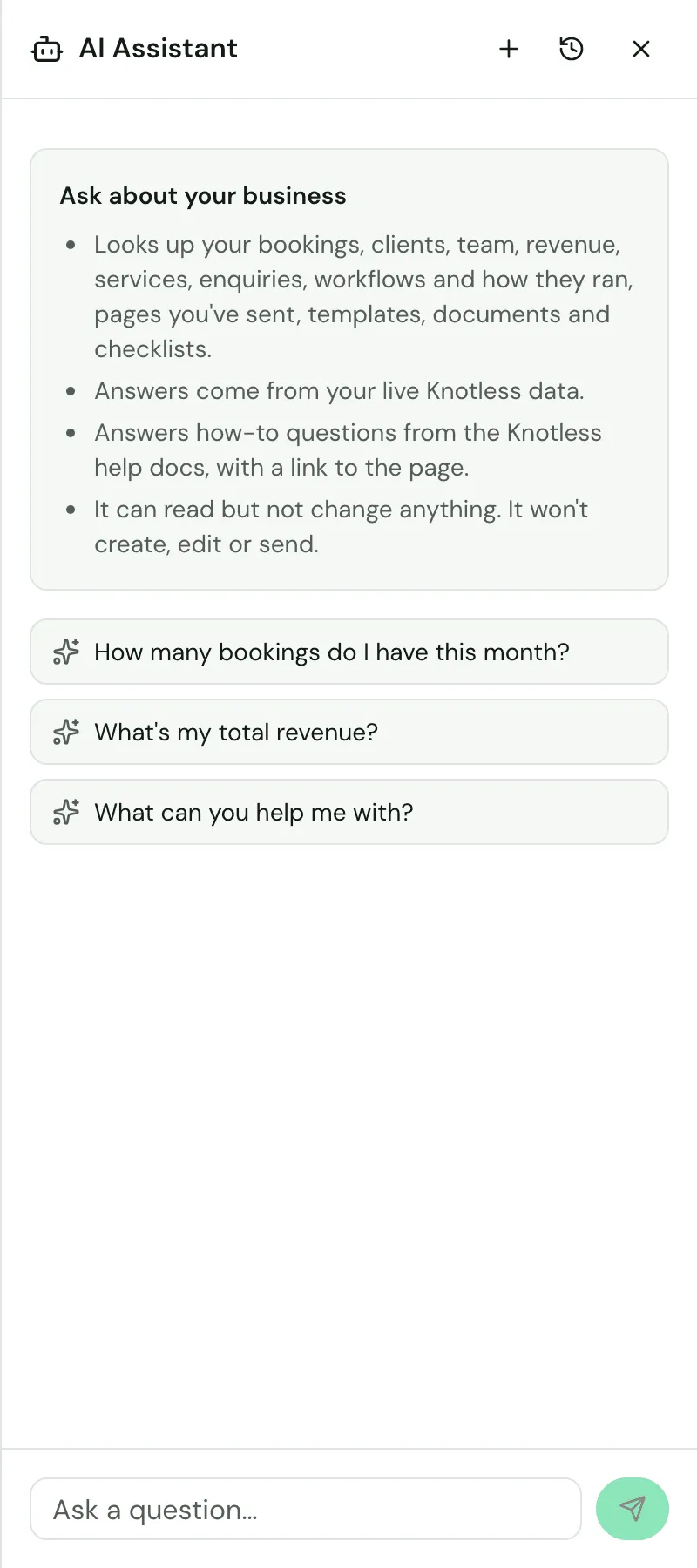
Section titled “Opening the assistant”Click the round assistant button in the bottom-right corner of the dashboard. It isn’t shown in the workflow builder (which has its own AI assistant for building workflows) or while you edit a template. The AI Assistant panel opens alongside the page. Type your question and press send.
You can also open it from Find anything… (⌘K): choose Ask AI, or type a question and choose Ask AI about it.
- New chat starts a fresh conversation.
- Chat history lists your earlier conversations so you can pick one up again, or delete them.
- Stop generating stops an answer part way.
- Under each answer you can copy it, or mark it as a good or bad response.
The first time you open it, Ask about your business suggests a few questions to start with, such as “How many bookings do I have this month?”. The suggestions change with the page you’re on.
If your plan doesn’t include the assistant, or your team lead hasn’t given you access, the button shows a lock. Click it to see why.
What it can look up
Section titled “What it can look up”The assistant reads your bookings, clients, team, revenue, services, enquiries, workflows and how they ran, pages you’ve sent, templates, documents and checklists. For example:
- “What’s my next booking, and where is it?”
- “How much did I make last month?”
- “Which bookings need review?”
- “Who’s on the Smith wedding, and whom did the client ask for?”
- “How are my team members doing?” (team leads)
- “How am I doing?”: a check on how your business is going, and how it’s changing.
On a team, it can also tell you who is assigned to each booking, the client’s ranked preferred providers, and, for team leads, how each team member is doing.
How-to questions
Section titled “How-to questions”Ask how to do something (“How do I invite someone to my team?”, “How do I add an If to a workflow?”) and the assistant answers in a few short steps taken from this help site, with a link to the page. If the help site doesn’t cover something, it says so rather than guessing.
What it can’t do
Section titled “What it can’t do”The assistant only reads. It can’t send emails, create, edit or delete anything (bookings, workflows, templates), or contact anyone for you. It can write a draft for you to copy, and point you to the page where you can do the rest.
What it can’t see
Section titled “What it can’t see”Some data is deliberately kept from the assistant:
- the body of any email (it sees the subject, recipient and delivery status);
- links: client page links, decline links, calendar share links, booking request (Accept / Decline) links, and PDF links;
- what a client typed into an enquiry form;
- who your calendar is shared with;
- team members’ email addresses, home addresses, photos and permission settings;
- your past conversations with it.
When you ask about these, it tells you and points you to the page where you can see them.
Team members
Section titled “Team members”A team member can use the assistant when the team lead gives members the AI Chat permission (see Team setup).
- Answers cover only the bookings the member is assigned to, and their clients and sent emails.
- Some answers, such as enquiry form submissions and team performance, are for team leads only. The assistant says when something isn’t available to your role.