Account Setup
Setting up your Knotless account takes just a few minutes. Follow these steps to get started.
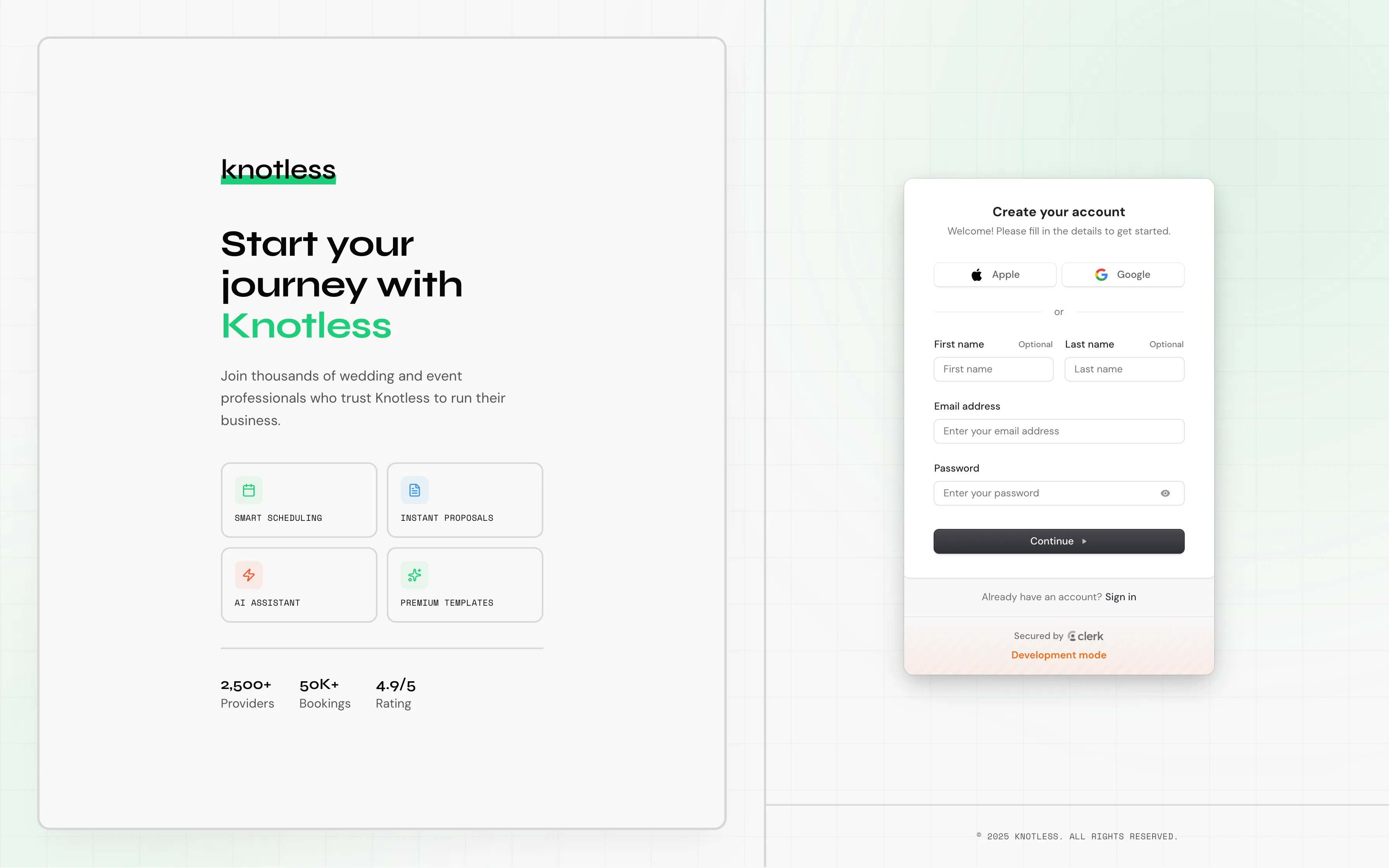
Creating Your Account
Section titled “Creating Your Account”- Visit knotless.co.uk and click Get Started
- Sign up using your email address or continue with Google
- Verify your email address if prompted
- You’ll be taken to your new dashboard
Setting Up Your Profile
Section titled “Setting Up Your Profile”After creating your account, configure your business profile in Settings:
Business Information
Section titled “Business Information”- Navigate to Settings from the sidebar
- Fill in your:
- Business name
- Business type (e.g., Makeup Artist, Photographer)
- Location and service area
- Contact information
- Bio/description
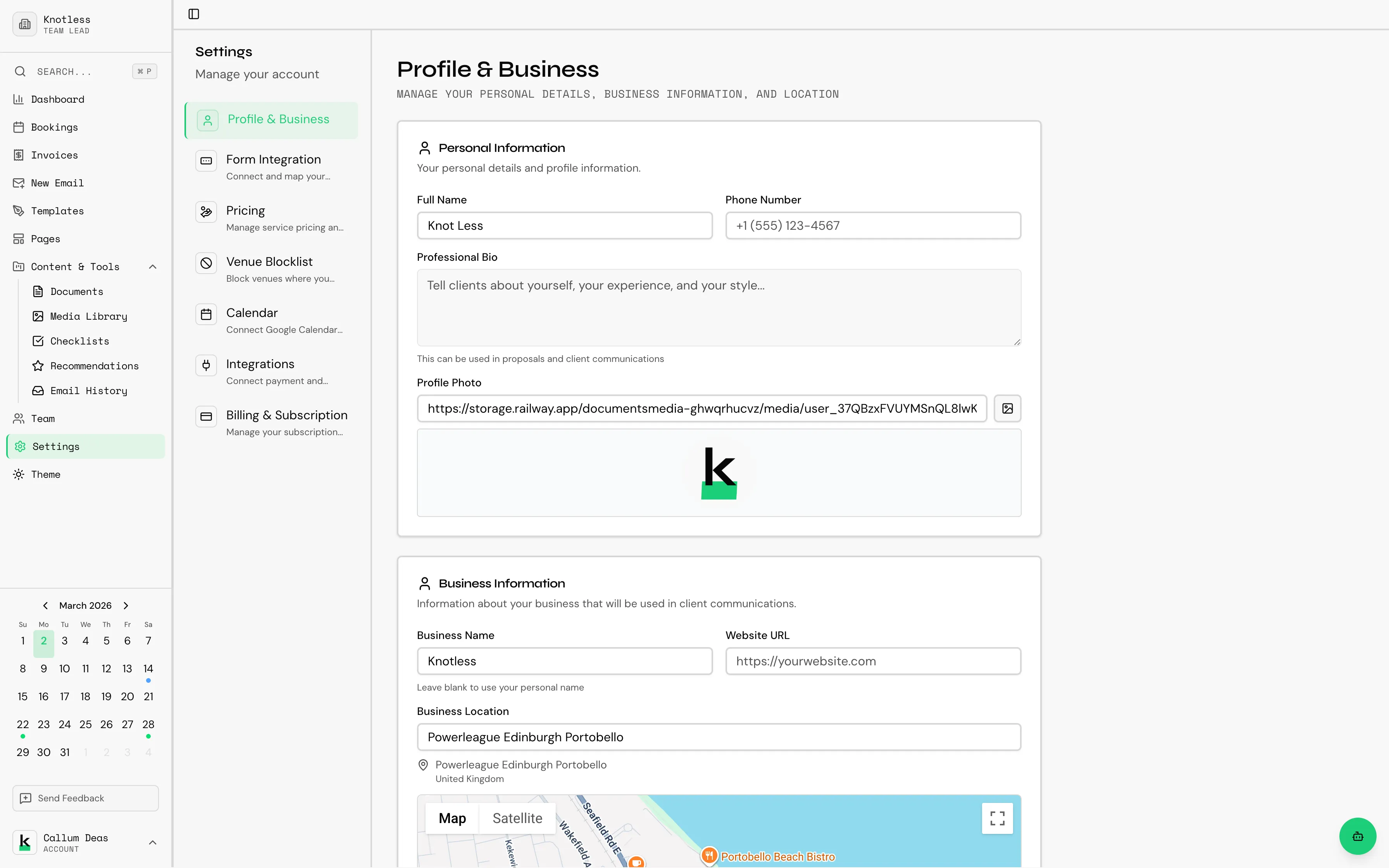
Profile Photo
Section titled “Profile Photo”Add a professional photo or your business logo:
- Click on your profile picture in the settings
- Upload an image (recommended: 400x400 pixels or larger)
- Crop and save
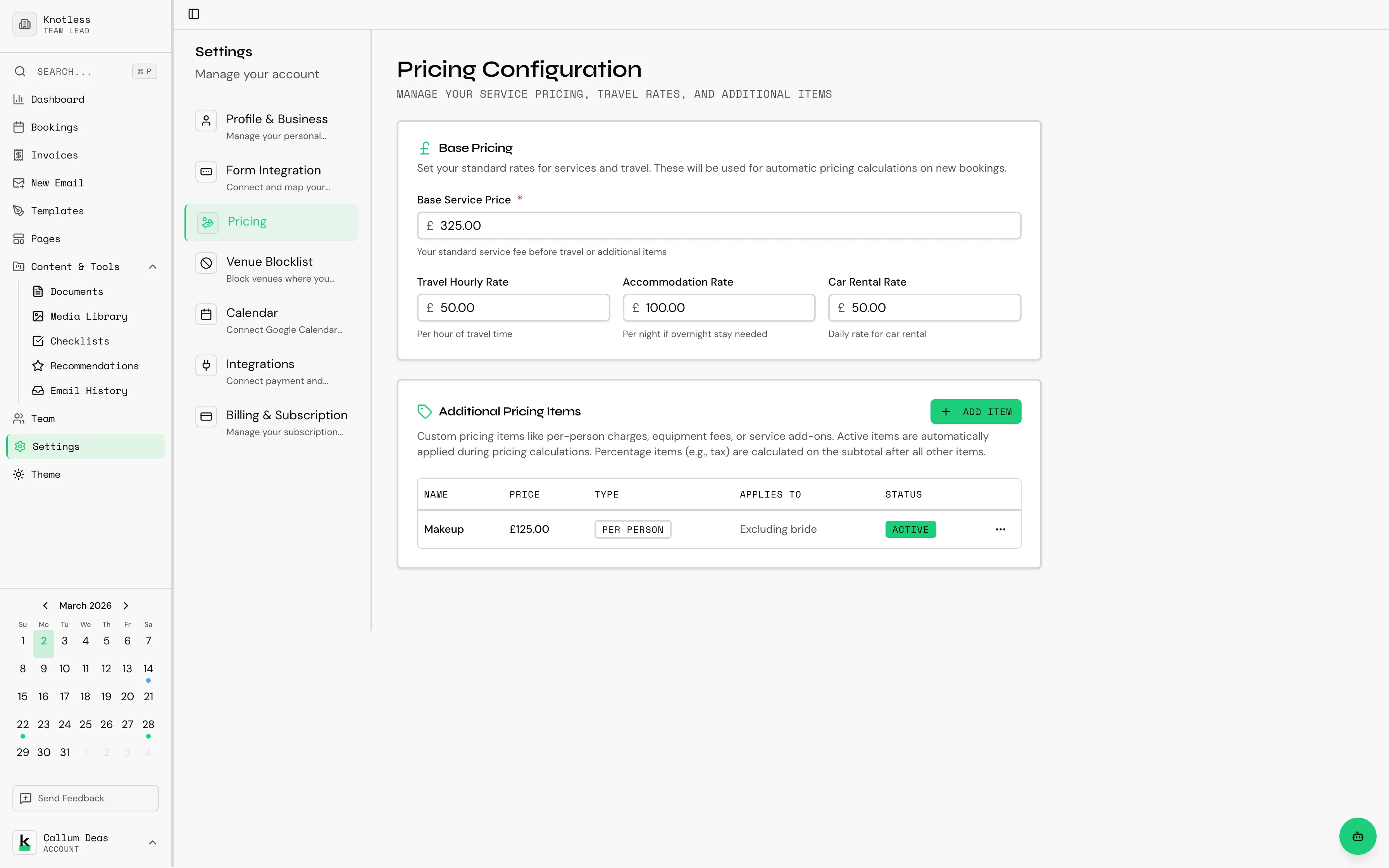
Configuring Your Pricing
Section titled “Configuring Your Pricing”Set up the services you offer and their pricing:
- Go to Settings → Pricing & Services
- Add your services with default pricing
- Configure travel rates if applicable
- Set up additional items or packages
Connecting Your Calendar (Premium)
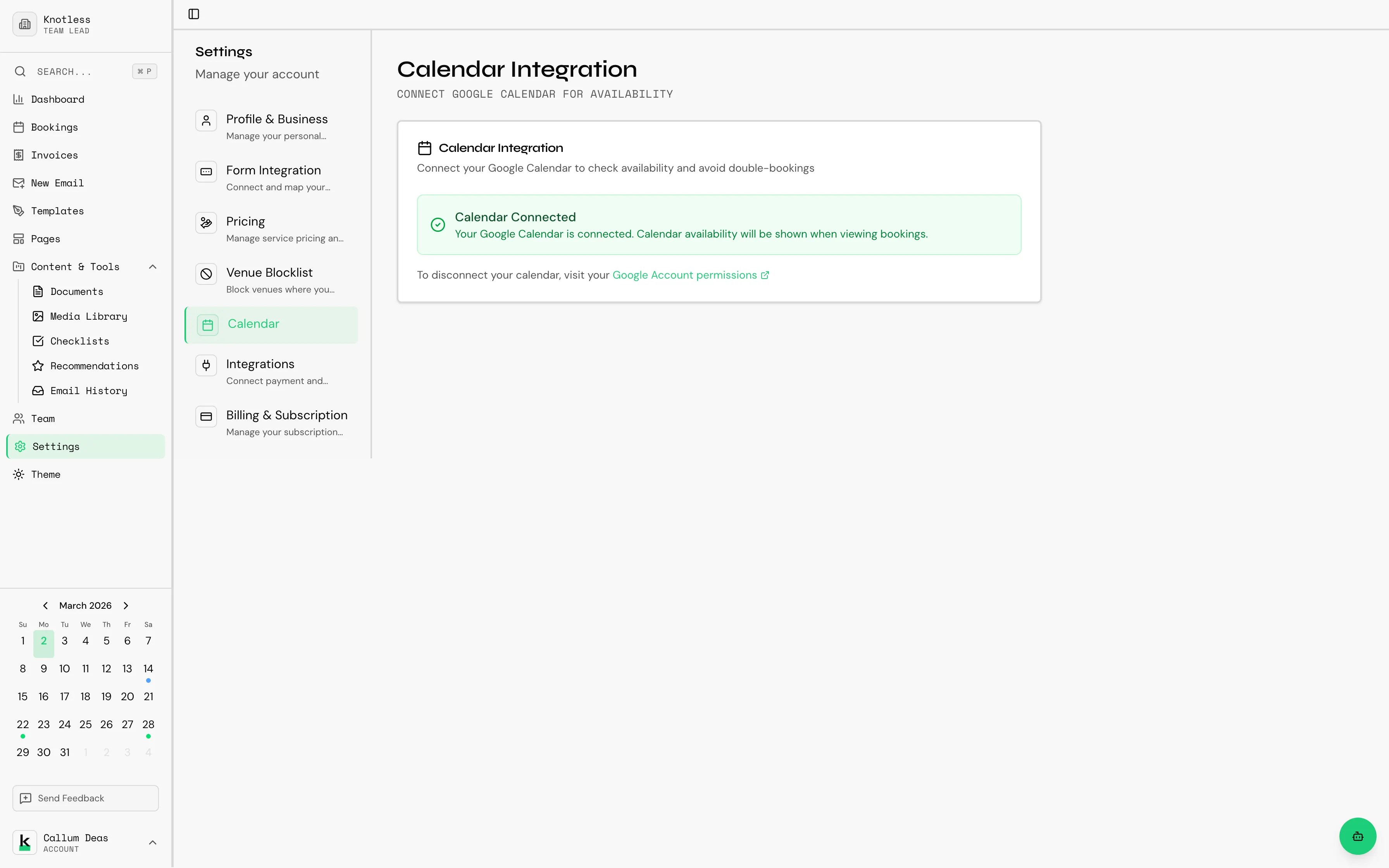
Section titled “Connecting Your Calendar (Premium)”Sync with Google Calendar to manage your availability:
- Go to Settings → Calendar
- Click Connect Google Calendar
- Sign in to your Google account and grant permissions
- Choose which calendar to sync
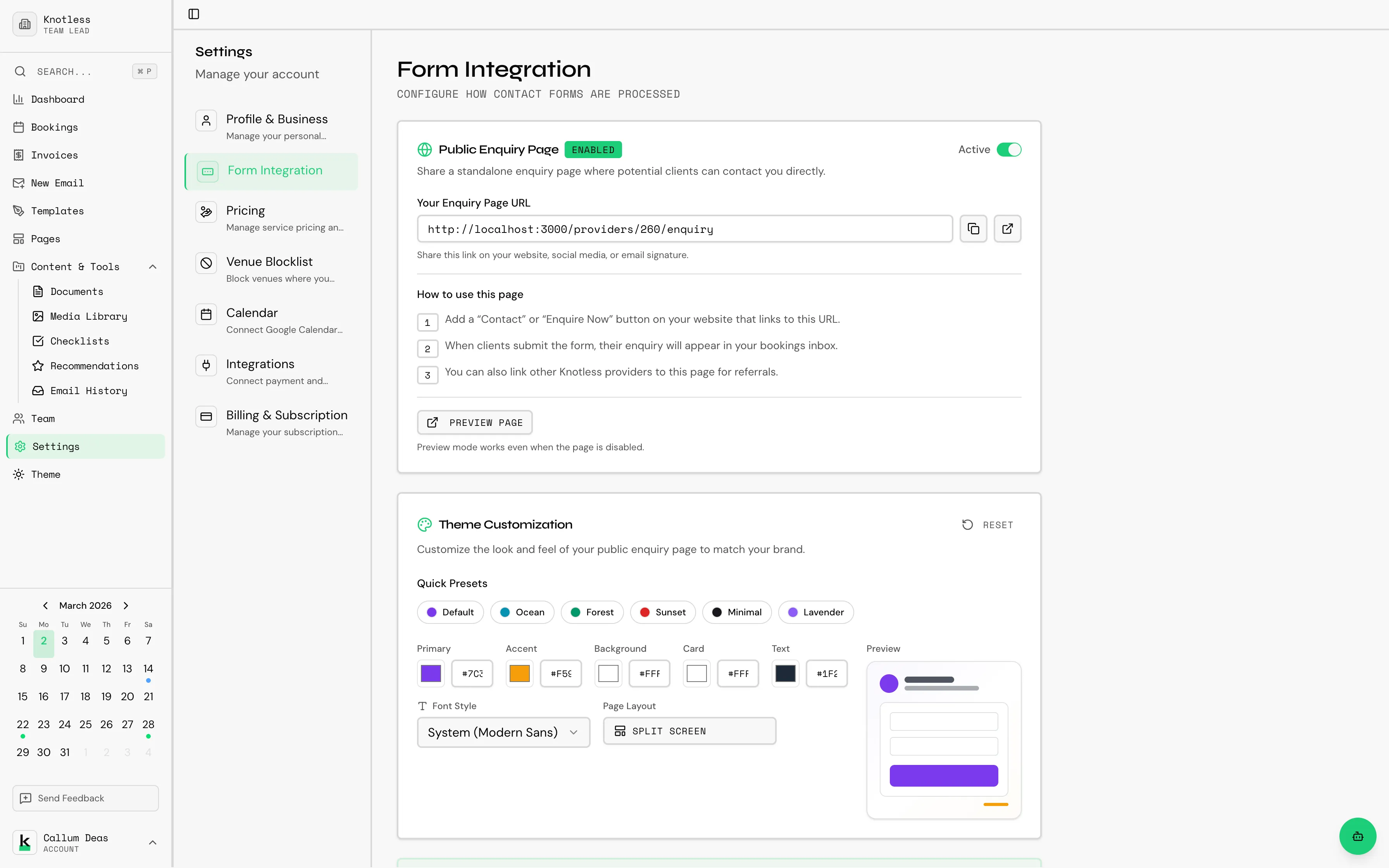
Setting Up Your Enquiry Form
Section titled “Setting Up Your Enquiry Form”Knotless provides a customisable contact form that you can embed on your website or share as a standalone link:
- Go to Settings → Forms
- Configure the form layout, theme, and fields
- Enable the hosted page to get a shareable link
- Copy the embed code to add the form to your website
See Enquiry Forms for full details.
Next Steps
Section titled “Next Steps”Once your account is set up:
- Explore the Dashboard to learn the interface
- Create your first booking to start tracking events
- Build an email template to streamline client communications
- Set up a workflow to automate routine tasks
Need help? Check our Troubleshooting guide or contact support.