Dashboard Overview
The Knotless dashboard is your central hub for managing your wedding and event business. This guide will help you understand each section.
Main Dashboard
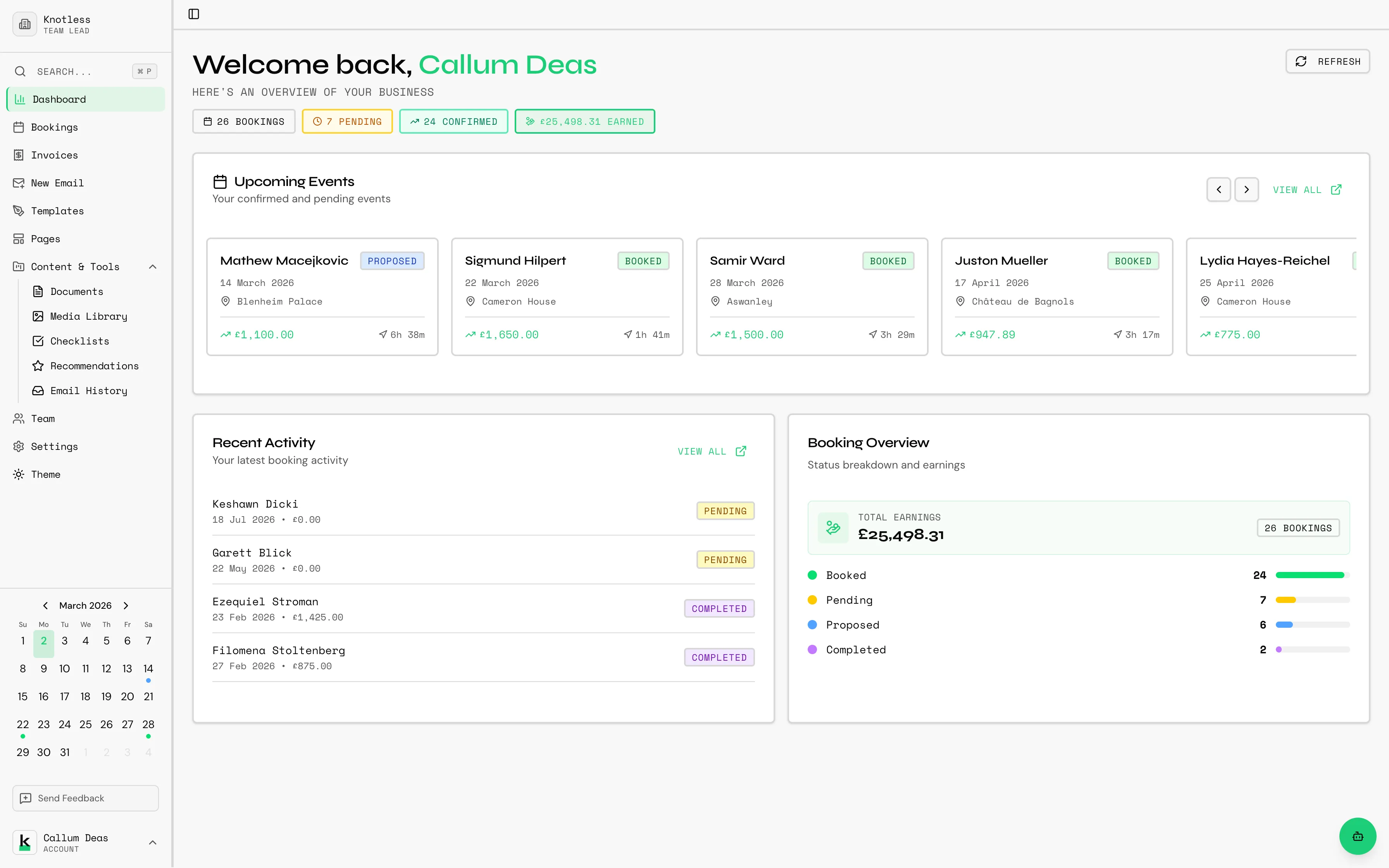
Section titled “Main Dashboard”When you log in, you’ll see your main dashboard with an overview of your business:
Key Sections
Section titled “Key Sections”- Quick Stats - Cards showing your total bookings, pending bookings, confirmed bookings, and total earnings
- Upcoming Events - A carousel of your next confirmed and pending bookings
- Recent Activity - The last 5 bookings with their current status
- Booking Overview - Status breakdown with visual progress bars showing how many bookings are at each stage
- Coming Up Soon - A highlight of your very next booking
Stale Bookings Banner
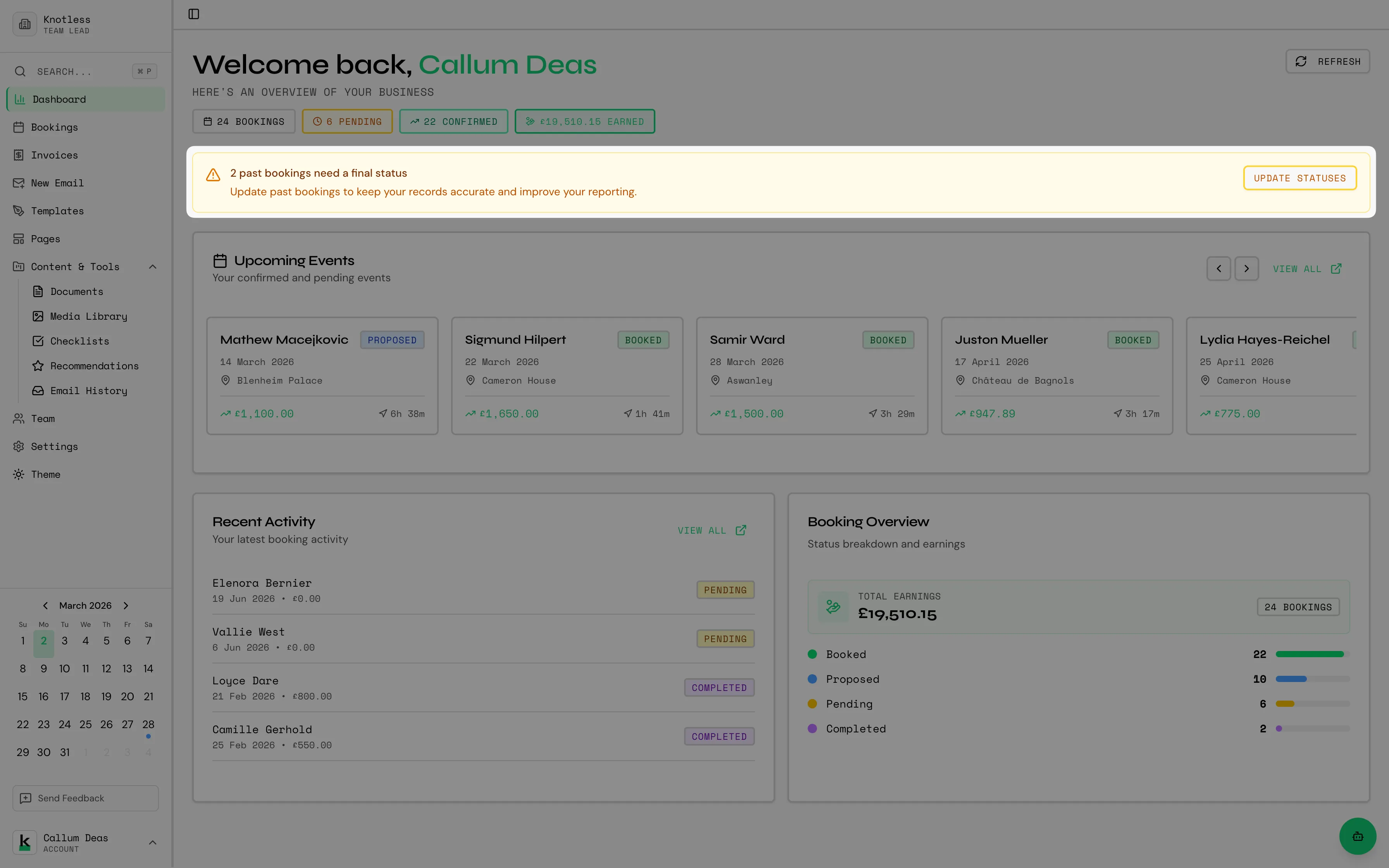
Section titled “Stale Bookings Banner”If you have old bookings that haven’t been updated in a while, a banner will appear at the top of the dashboard with a wizard to help you clean them up. The wizard lets you quickly confirm, cancel, or update stale bookings.
Navigation Sidebar
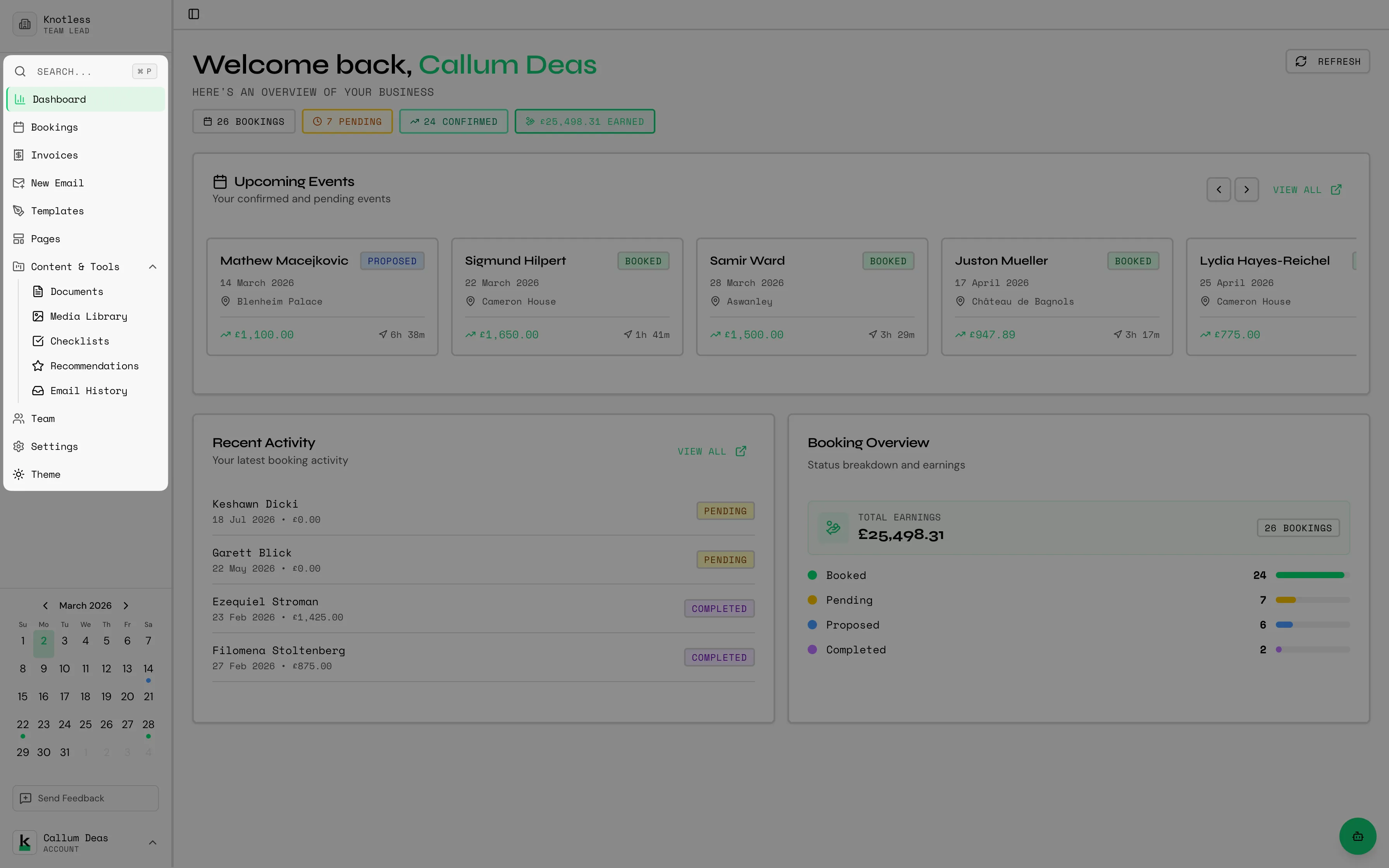
Section titled “Navigation Sidebar”The sidebar on the left provides access to all major features:
Main Menu Items
Section titled “Main Menu Items”| Section | Description |
|---|---|
| Dashboard | Main overview with stats and recent activity |
| Bookings | Manage all your bookings in list, calendar, or map |
| Invoices | View and manage invoices (Premium) |
| New Email | Compose and send emails from templates |
| Templates | Manage your email templates |
| Pages | Create and manage pages for proposals and contracts |
| Workflows | Build automated workflows |
Content & Tools (Collapsible)
Section titled “Content & Tools (Collapsible)”| Section | Description |
|---|---|
| Documents | Upload and organise business documents |
| Media Library | Manage images and videos |
| Checklists | Create reusable checklist templates |
| Recommendations | Curate trusted supplier lists |
| Email History | View all sent emails and their status |
| Section | Description |
|---|---|
| Settings | Configure your account and preferences |
Command Search
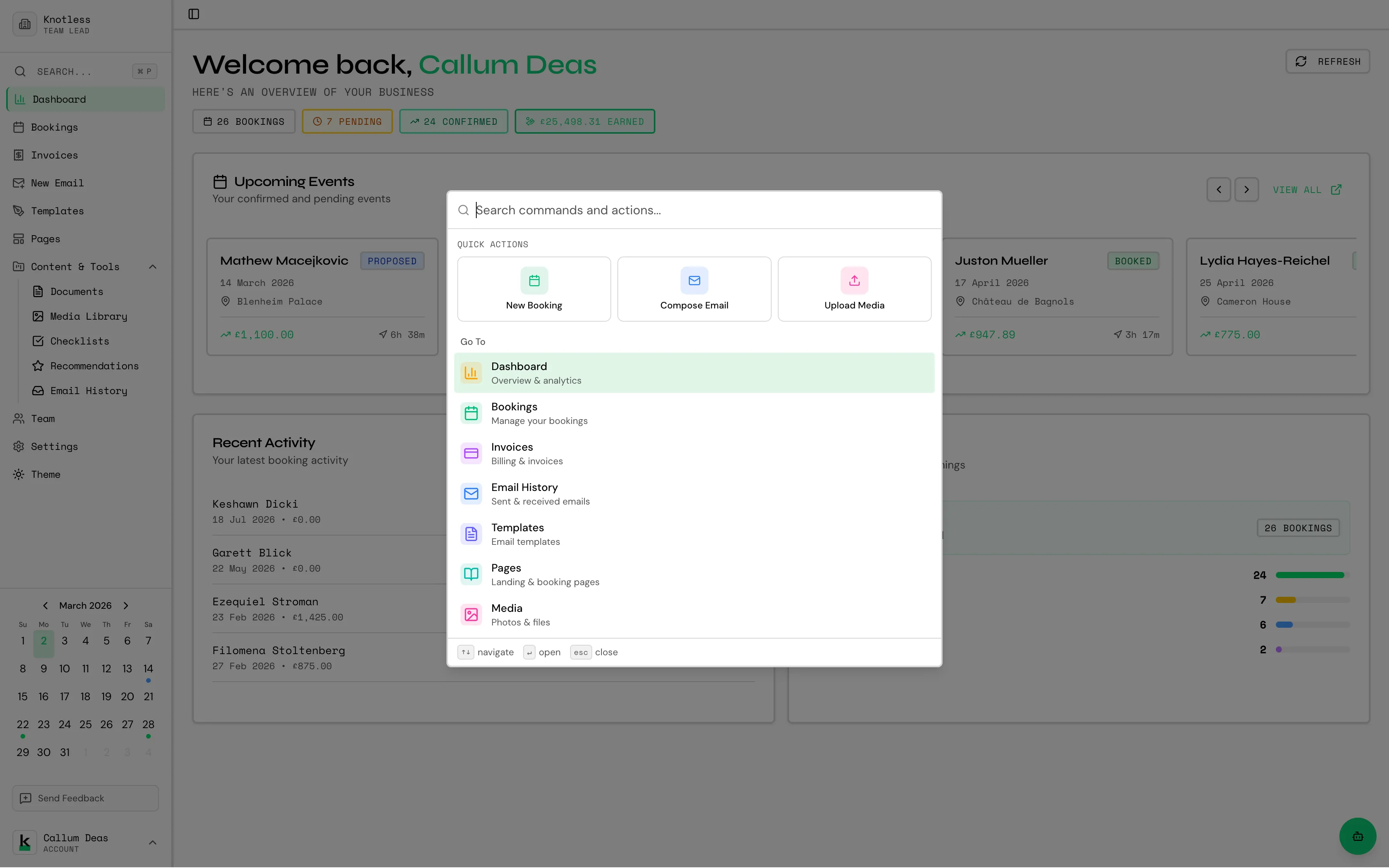
Section titled “Command Search”The sidebar includes a search bar at the top that lets you quickly find bookings, navigate to pages, or search across your data. Press it or use the keyboard shortcut to open it.
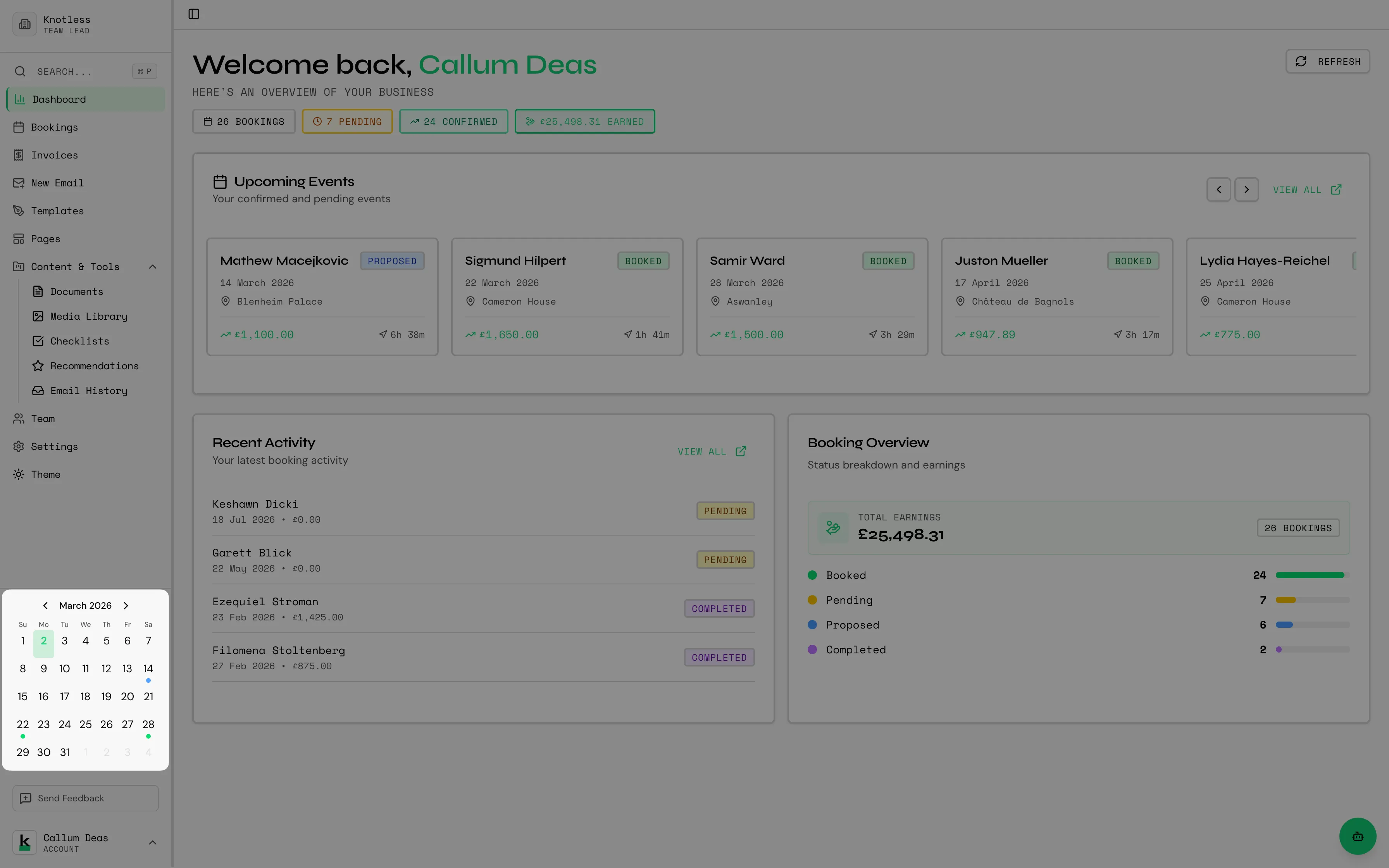
Booking Calendar (Sidebar)
Section titled “Booking Calendar (Sidebar)”At the bottom of the sidebar, a mini calendar shows your upcoming bookings at a glance. Click on any date to see that day’s bookings.
Theme Settings
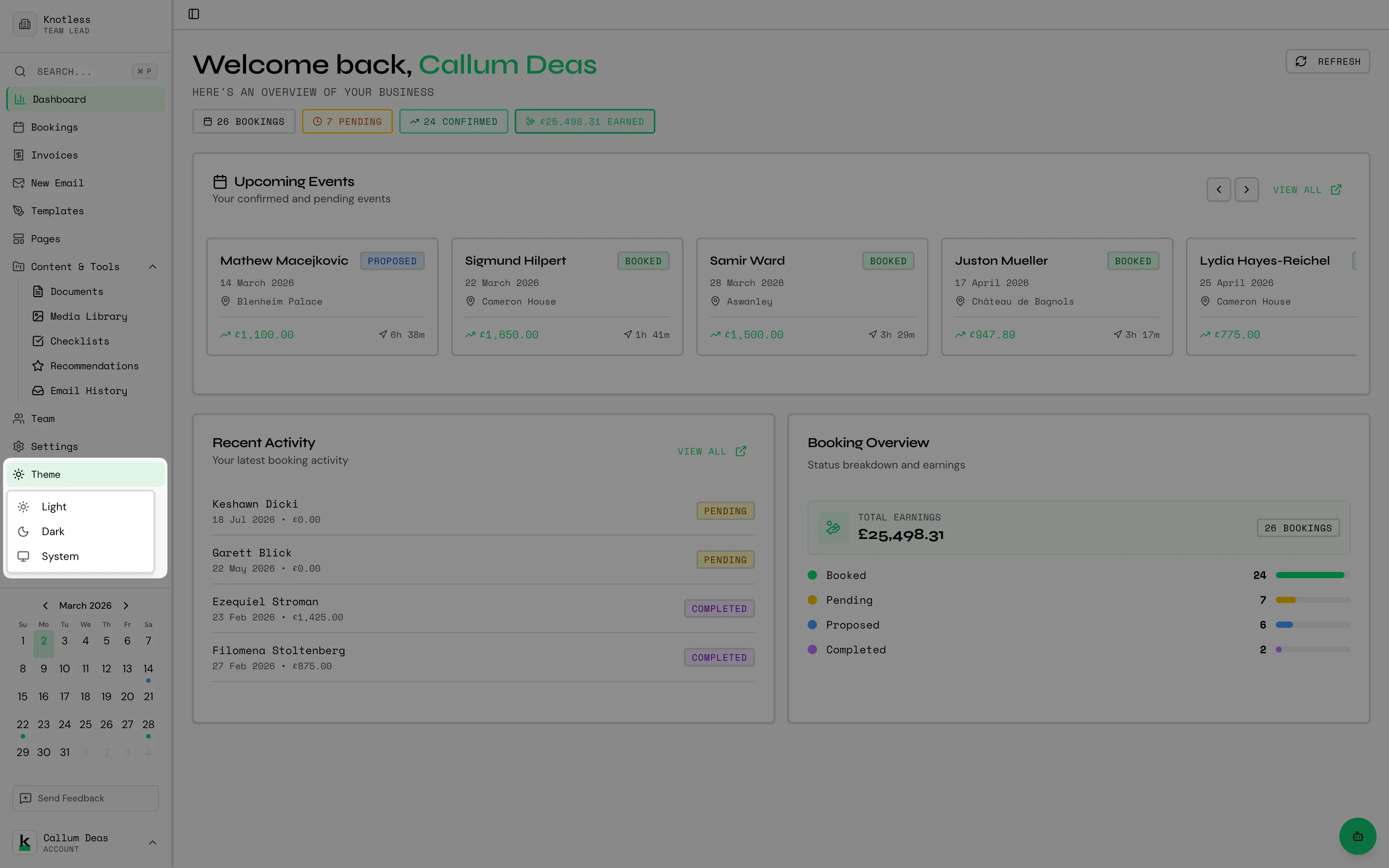
Section titled “Theme Settings”Switch between light and dark mode using the theme picker in the sidebar. Choose from Light, Dark, or System (matches your device settings).
User Menu
Section titled “User Menu”Click your name at the bottom of the sidebar to access account options including sign out.
Ready to start managing bookings? Continue to Managing Bookings.