Calendar Integration
Sync your Knotless bookings with Google Calendar to keep all your appointments in one place and avoid double-bookings.
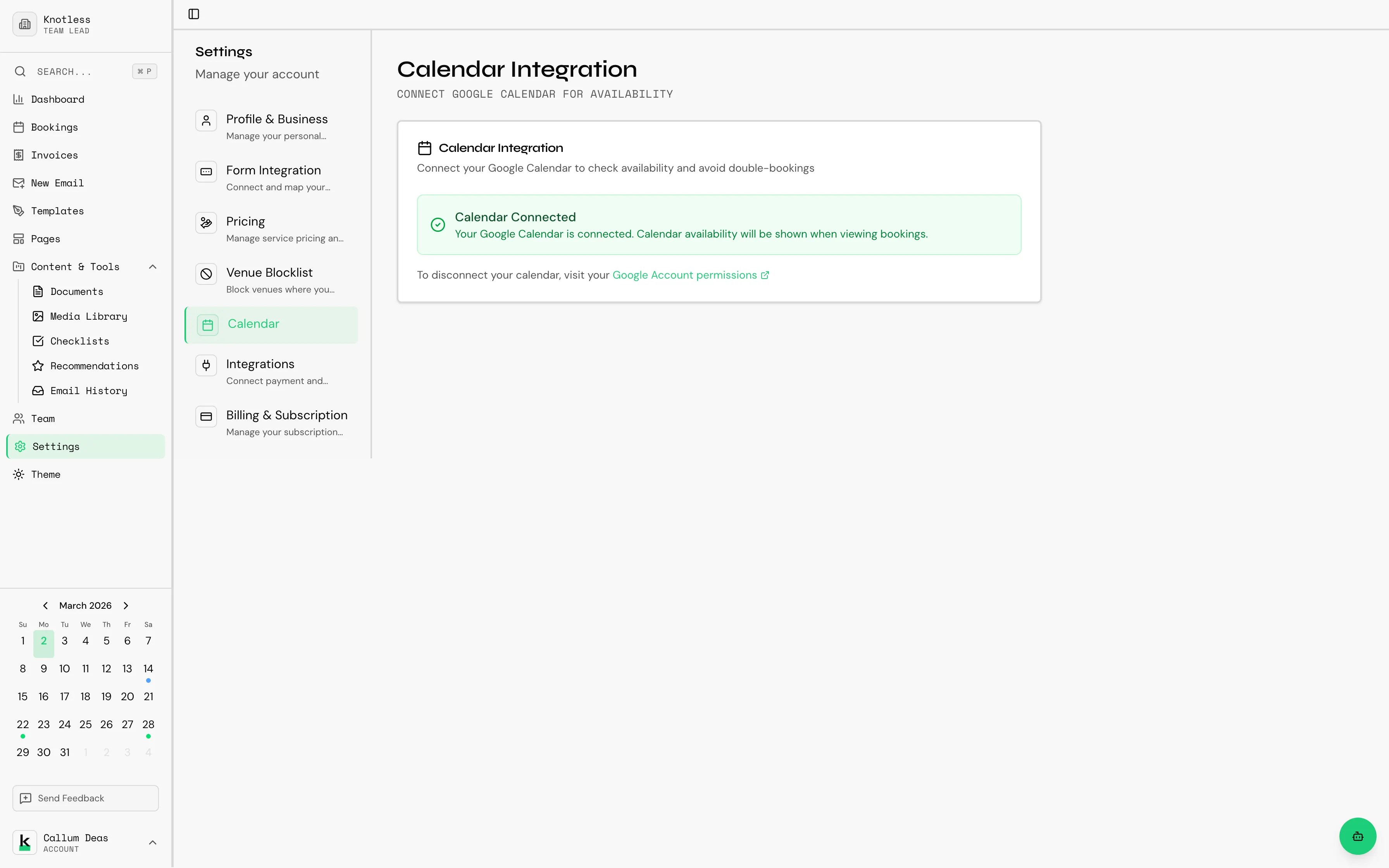
Connecting Google Calendar
Section titled “Connecting Google Calendar”- Go to Settings → Calendar
- Click Connect Google Calendar
- Sign in with your Google account
- Grant Knotless permission to access your calendar
- Select which calendar to sync with
How Sync Works
Section titled “How Sync Works”Once connected, Knotless provides two-way synchronisation:
- Knotless → Google Calendar - New and updated bookings automatically appear in your Google Calendar
- Google Calendar → Knotless - Events created in Google Calendar are reflected in Knotless
What Gets Synced
Section titled “What Gets Synced”- Booking date and time
- Client name
- Venue/location
- Booking status
Calendar Events from Workflows
Section titled “Calendar Events from Workflows”If you use Workflows, the Calendar Event node can automatically create Google Calendar events as part of an automated workflow.
Disconnecting
Section titled “Disconnecting”To disconnect Google Calendar:
- Go to Settings → Calendar
- Click Disconnect
- Confirm the disconnection
Troubleshooting
Section titled “Troubleshooting”Calendar Not Syncing
Section titled “Calendar Not Syncing”- Check your connection status in Settings → Calendar
- Try disconnecting and reconnecting
- Ensure you’ve granted all necessary permissions
- Check that the correct calendar is selected
Events Not Appearing
Section titled “Events Not Appearing”- New bookings may take a few minutes to sync
- Check if the booking status allows sync
- Verify your Google Calendar isn’t filtered to hide events
Next: Set up Payment Integrations to manage invoices and payments.