Profile & Business Settings
The Settings page lets you configure your account, business information, and preferences.
Accessing Settings
Section titled “Accessing Settings”Click Settings in the sidebar to open the settings page. Settings are organised into several tabs accessible from the settings navigation.
Profile Settings
Section titled “Profile Settings”Personal Details
Section titled “Personal Details”Update your personal information:
- Full name
- Email address
- Phone number
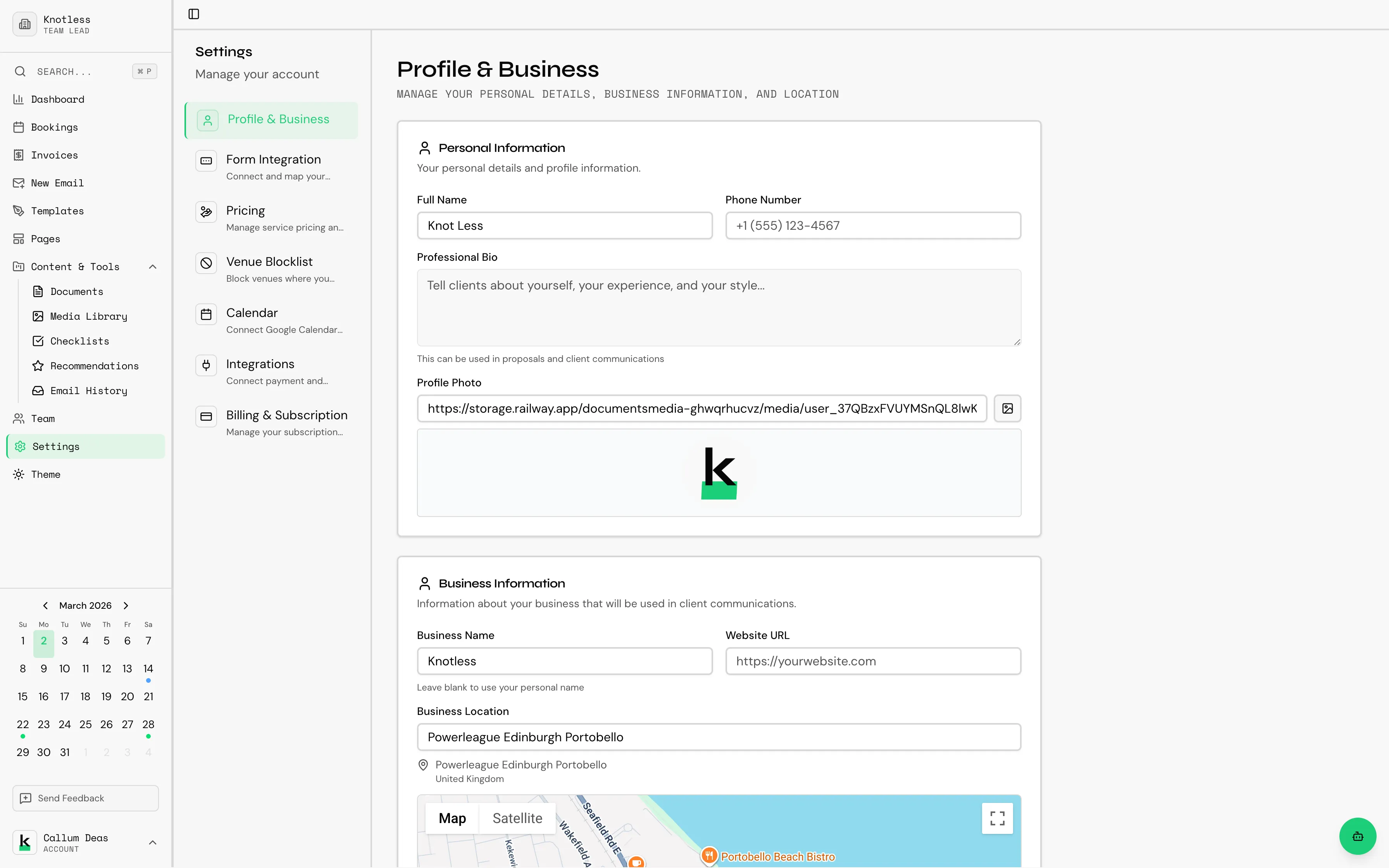
Business Information
Section titled “Business Information”Configure your business profile that clients will see:
- Business name - Your trading name
- Business type - Your service category (e.g., Makeup Artist, Photographer)
- Bio/description - A brief description of your services
- Logo - Upload your business logo
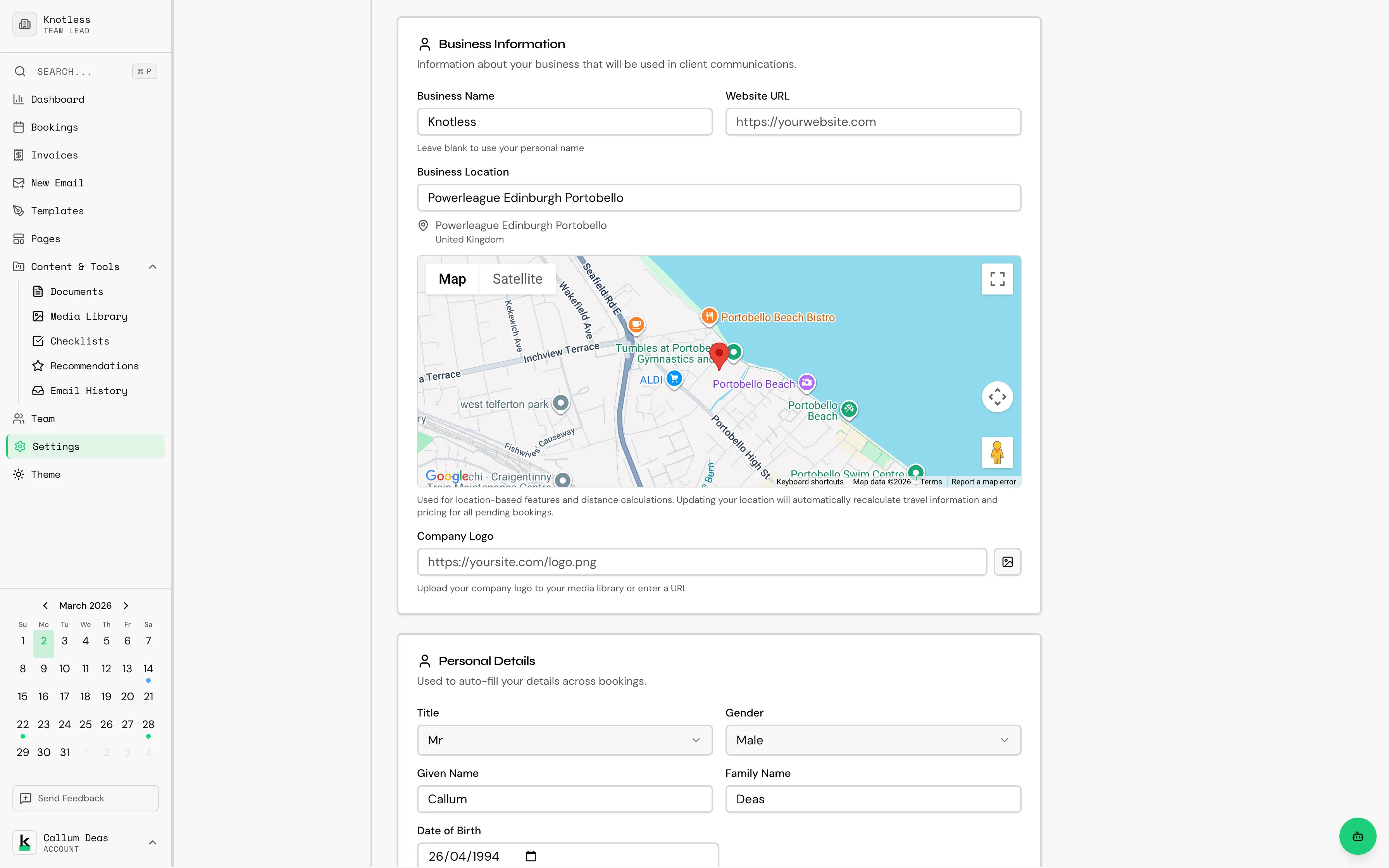
Location
Section titled “Location”Set your primary business location:
- Address - Your business base address
- Service area - The geographic area you serve
This information is used for travel distance calculations on bookings.
Venue Blocklist
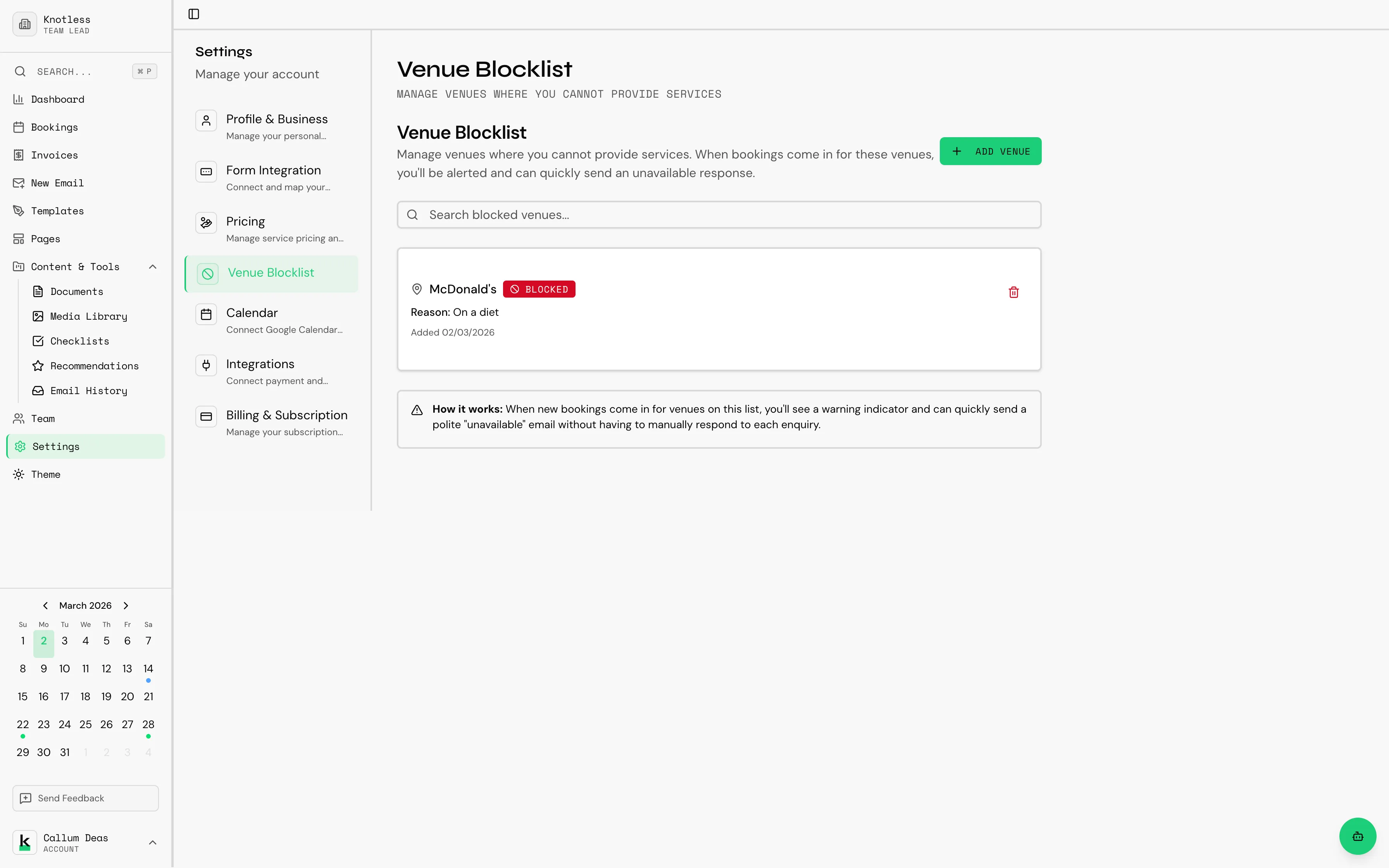
Section titled “Venue Blocklist”Block specific venues from appearing in your bookings or recommendations:
- Go to Settings → Venue Blocklist
- Add venues you don’t serve or want to exclude
- These venues will be filtered out
Next: Configure your Pricing & Services.